Chromebook Screen Brightness: Fix Dark or Dim Screen Issues
If your Chromebook screen brightness is not working properly, you may notice that your display looks too dark, the brightness controls do not respond, or the screen keeps becoming dim during use.
A chromebook screen is dark problem does not always mean the display is damaged. In many cases, the issue is caused by brightness settings, power-saving features, ChromeOS settings, or temporary software problems.
However, if your chromebook screen is very dim even when the brightness is turned all the way up, the problem could also be related to the display hardware, such as the backlight, LCD panel, or display cable.
This guide explains the most common causes of Chromebook brightness problems and how to troubleshoot them step by step.
Why Is My Chromebook Screen Brightness Not Working?
A Chromebook display can become too dark or fail to brighten for several reasons.
Common causes include:
- Incorrect brightness settings
- Battery-saving features reducing screen brightness
- ChromeOS software issues
- Night Light settings
- Automatic brightness adjustments
- Display hardware problems
Before assuming your screen needs repair, it is worth checking the software settings first. Many brightness problems can be fixed in just a few minutes.
Chromebook Screen Is Dark? Try These Quick Fixes First
If your chromebook screen is dark, start with the simplest solutions.
Increase Brightness Using the Keyboard
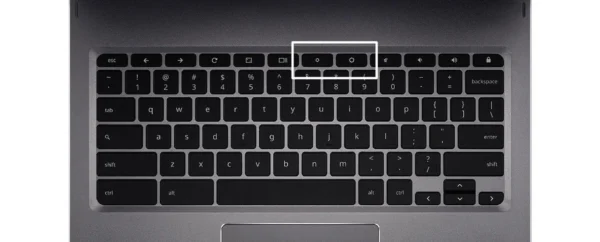
Most Chromebooks have dedicated brightness controls on the top row of the keyboard.
Look for the brightness icons and try:
- Press the brighter screen key several times
- Wait a few seconds to see if the display changes
- Check whether the brightness indicator appears
If the brightness level changes but the screen remains dark, the issue may not be related to the brightness setting itself.
Adjust Brightness Through ChromeOS Settings
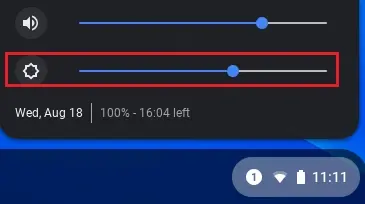
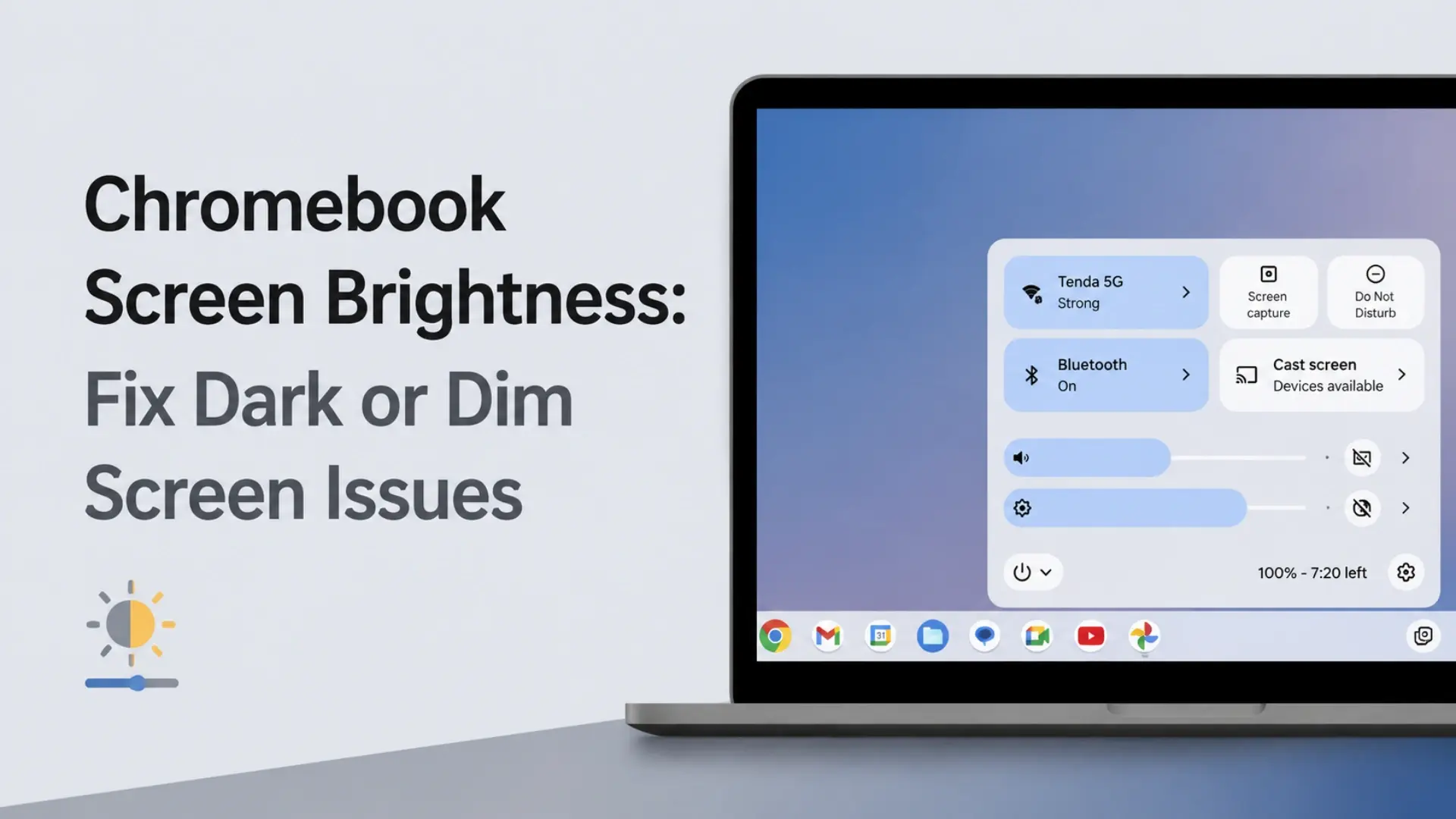
You can also manually adjust brightness from the ChromeOS quick settings menu.
Follow these steps:
- Click the clock in the bottom-right corner
- Open the Quick Settings panel
- Locate the brightness slider
- Move the slider to increase brightness
If the slider moves normally but the screen does not get brighter, continue with the troubleshooting steps below.
Restart Your Chromebook
A simple restart can fix temporary ChromeOS display problems.
To restart:
- Click the clock area
- Select the Power option
- Turn off your Chromebook
- Wait a few seconds
- Turn it back on
After restarting, test the brightness controls again.
Chromebook Screen Brightness Not Working? Try These Solutions
If your chromebook screen brightness not working, the problem may be related to system settings or software.
Update ChromeOS
ChromeOS updates often include bug fixes that improve device performance and hardware compatibility.
To check for updates:
- Open Settings
- Select About ChromeOS
- Click Check for updates
After installing updates, restart your Chromebook and test the brightness again.
Disable Battery Saving Features
Chromebooks may reduce screen brightness automatically to extend battery life.
If your screen becomes darker when running on battery power, check your power settings.
Try:
- Connecting your Chromebook to a charger
- Checking battery-related settings
- Testing brightness while plugged in
If the brightness works normally when charging, power-saving settings may be the cause.
Turn Off Night Light
ChromeOS includes a Night Light feature that reduces blue light exposure.
While Night Light does not usually reduce brightness significantly, it can make the display appear darker or warmer.
To disable it:
- Open Settings
- Go to Display settings
- Turn off Night Light
Check whether the screen appearance improves.
Chromebook Screen Won’t Brighten? Check These Issues
If your chromebook screen won’t brighten even after increasing the brightness level, there may be another problem.
Check If the Brightness Controls Respond
Try changing the brightness using both:
- Keyboard brightness keys
- ChromeOS brightness slider
If neither method works, the issue may be related to ChromeOS or hardware.
Perform a Hardware Reset
A hardware reset can help fix certain Chromebook problems caused by temporary system errors.
To perform a reset:
- Turn off your Chromebook
- Press and hold the Refresh key
- Press the Power button
- Release the keys when the Chromebook starts
This process does not remove your files.
Why Does My Chromebook Screen Keep Dimming?
If your chromebook screen keeps dimming, automatic settings or power management features may be responsible.
Automatic Brightness Adjustments
Some Chromebook models adjust brightness depending on lighting conditions.
If your screen repeatedly becomes darker and brighter, check whether automatic brightness settings are enabled.
Battery Power Management
When your battery level is low, ChromeOS may reduce display brightness to save power.
Try charging your Chromebook and check whether the brightness behavior changes.
Screen Timeout Settings
Your Chromebook may dim the display before entering sleep mode.
To adjust this:
- Open Settings
- Go to Power settings
- Review screen timeout options
Increasing the timeout period may prevent unnecessary dimming.
Chromebook Screen Very Dim: Software or Hardware Problem?
A chromebook screen very dim issue can be caused by either software settings or a failing display component.
The following checks can help identify the cause.
| Problem | Possible Cause |
|---|---|
| Brightness slider works but screen stays dark | Display hardware issue |
| Screen is visible but extremely dim | Backlight problem |
| Screen flickers or changes when moving the lid | Display cable issue |
| External monitor works but Chromebook screen does not | Internal display problem |
Signs It Is Probably a Software Problem
Your issue may be software-related if:
- Restarting temporarily fixes the problem
- Brightness controls still work
- The problem started after a ChromeOS update
- The screen works normally after changing settings
Try:
- Updating ChromeOS
- Resetting display settings
- Checking power settings
Signs It May Be a Hardware Problem
The problem may involve the display hardware if:
- The screen stays dark at maximum brightness
- The display flickers
- You can barely see images on the screen
- Brightness settings work but the display does not change
Possible hardware causes include:
- Faulty backlight
- Damaged LCD panel
- Loose or damaged display cable
- Failing screen assembly
Chromebook Dark Screen Fix: When You May Need a Replacement Part
A chromebook dark screen fix usually starts with software troubleshooting. However, if the problem continues after trying common solutions, the display components may need to be inspected.
Possible hardware-related causes include:
Backlight Failure
The Chromebook may still be displaying images, but the screen appears almost black because the backlight is not working properly.
A common sign is being able to see the image faintly when shining a light on the screen.
Damaged LCD Screen
A damaged LCD panel can cause:
- Very dim images
- Flickering
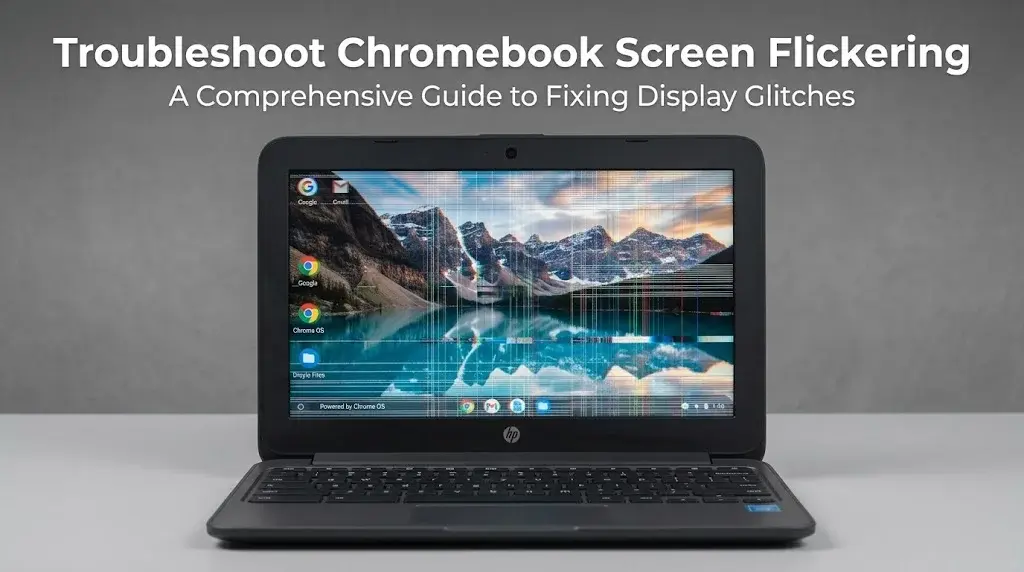
- Lines on the screen
- Partial display problems
In these cases, replacing the display component may be necessary.
Display Cable Problems
The cable connecting the motherboard and screen can become loose or damaged.
Symptoms may include:
- Screen brightness changing when moving the lid
- Intermittent display problems
- Flickering
When Should You Replace a Chromebook Screen?
Not every brightness issue requires a replacement. However, a screen replacement may be needed when:
- The display remains dark after all software fixes
- The backlight has failed
- The screen has physical damage
- The display flickers or shows permanent defects
- An external monitor works but the built-in screen does not
Before replacing any part, confirm your Chromebook model and identify whether the issue is related to the LCD panel, screen assembly, or another component.
Frequently Asked Questions
Why is my Chromebook screen so dark?
A Chromebook screen can become dark because of low brightness settings, battery-saving features, Night Light mode, ChromeOS issues, or display hardware problems.
Why won’t my Chromebook brightness increase?
If your Chromebook brightness will not increase, check the keyboard brightness controls, ChromeOS settings, battery options, and system updates. If the issue continues, the display hardware may need inspection.
Can a Chromebook brightness problem be caused by a broken screen?
Yes. If the brightness settings work but the screen remains extremely dim, the problem may be caused by a damaged backlight, LCD panel, or display cable.
How do I fix a Chromebook screen that keeps dimming?
Check automatic brightness settings, battery-saving features, and screen timeout options. Updating ChromeOS can also help resolve repeated dimming issues.
Final Thoughts
Most Chromebook screen brightness problems are caused by simple settings or temporary ChromeOS issues. Adjusting brightness, checking power settings, and updating the system can solve many dark screen problems.
However, if your chromebook screen is dark, your chromebook screen brightness not working, or your chromebook screen won’t brighten even after troubleshooting, the problem may involve the display hardware.
Understanding whether the issue is software-related or hardware-related can help you choose the right solution and determine whether a display component needs further inspection or replacement.