Chromebook Touchscreen Not Working? Fixes & Causes
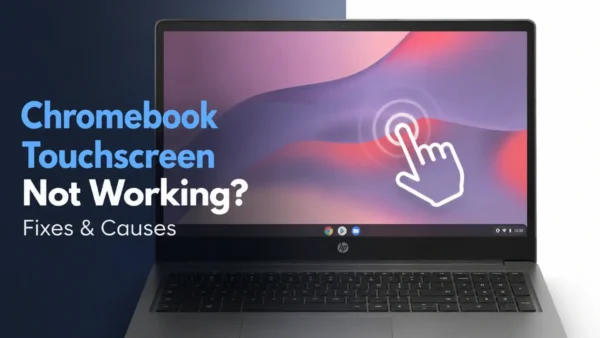
A Chromebook touchscreen not working issue can be frustrating, especially when you rely on touch gestures for browsing, drawing, navigating apps, or using tablet mode. Sometimes the problem is caused by a simple software glitch, while other times it may indicate a damaged touchscreen component.
If you are searching for touchscreen not working on chromebook, touch screen not working on chromebook, or your Chromebook screen not responding to touch, this guide explains the most common causes, troubleshooting steps, and how to determine whether your Chromebook needs a touchscreen replacement.
Why Is My Touch Screen Not Working on My Chromebook?
If you are asking why is my touch screen not working on my chromebook, the cause can usually be divided into three categories: software issues, settings problems, or hardware damage.
Understanding the cause will help you decide whether you can fix the problem yourself or whether a replacement part may be needed.
Temporary ChromeOS Software Issues
A temporary ChromeOS error is one of the most common reasons a Chromebook touchscreen stops responding.
This can happen after:
- waking the device from sleep mode
- installing a ChromeOS update
- running too many applications
- experiencing system crashes
In many cases, restarting your Chromebook can restore normal touchscreen functionality.
Touchscreen Settings or ChromeOS Configuration Problems
Sometimes the touchscreen itself is working properly, but software settings prevent it from responding correctly.
Possible causes include:
- incorrect Chrome flags settings
- outdated ChromeOS version
- user profile conflicts
- browser extension issues
Before replacing any hardware, it is worth checking whether the issue can be resolved through software troubleshooting.
Dirty or Damaged Touchscreen Surface
The touchscreen relies on accurate contact between your finger and the display surface.
A Chromebook screen touch not working problem may happen because of:
- dust or fingerprints
- moisture on the screen
- cracks in the display
- impact damage
Cleaning the screen with a microfiber cloth can sometimes solve minor touch issues.
Damaged Touchscreen Hardware
If your Chromebook touch screen not working continues after software troubleshooting, the problem may involve the touchscreen hardware.
Common hardware-related causes include:
- damaged digitizer layer
- broken touchscreen assembly
- loose internal connection
- physical impact damage
In these cases, replacing the damaged component may be necessary.
How to Fix Touchscreen on Chromebook
If you want to know how to fix touchscreen on chromebook, try these solutions before considering hardware replacement.
1. Restart Your Chromebook
A restart should always be the first troubleshooting step.
To restart:
- Click the status area in the bottom-right corner.
- Select the Power button.
- Turn the Chromebook back on.
After restarting, test whether the touchscreen responds.
2. Clean the Touchscreen
Use a clean microfiber cloth to remove fingerprints, dust, and moisture.
Avoid using too much liquid because moisture can damage touchscreen components.
After cleaning, check whether the Chromebook screen touch not working issue has improved.
3. Update ChromeOS
An outdated ChromeOS version may cause compatibility problems with touchscreen features.
To check for updates:
- Open Settings.
- Select About ChromeOS.
- Check for available updates.
Install updates and restart your device.
4. Perform a Hardware Reset
A hardware reset can fix temporary issues related to Chromebook hardware controllers.
Steps:
- Turn off your Chromebook.
- Press and hold the Refresh key.
- Press the Power button.
- Release the keys when the Chromebook starts.
This process does not erase your personal files.
5. Disable Extensions and Test Guest Mode
If your touchscreen works incorrectly only in certain situations, software conflicts may be responsible.
Try:
- disabling Chrome extensions
- signing in as a Guest user
- testing touchscreen behavior with fewer applications running
This can help identify whether the issue is related to your Chromebook account or software environment.
How to Know If Your Chromebook Touchscreen Needs Replacement
Not every touchscreen issue requires a replacement. However, hardware damage is more likely if:
- the touchscreen does not respond anywhere
- only certain areas respond to touch
- the screen has visible cracks
- touch stopped working after a drop or impact
- software troubleshooting does not solve the problem
A Chromebook touchscreen is usually made of multiple components, including the display panel and digitizer layer. Depending on the Chromebook model, these parts may be replaced separately or as a complete touchscreen assembly.
Can You Replace a Chromebook Touchscreen Yourself?
Some Chromebook touchscreen problems can be repaired by replacing the damaged component, but compatibility is important.
Before replacing a Chromebook touchscreen, check:
- exact Chromebook model number
- screen size
- touchscreen compatibility
- whether your device uses a touchscreen assembly or separate components
Using the wrong replacement part may result in compatibility issues or installation problems.
Chromebook Screen Touch Not Working? Check These Things First
Before purchasing a replacement part or scheduling a repair, check:
Does touch fail across the entire screen?
If only one application has problems, the issue may be software-related rather than a touchscreen failure.
Did the issue start after physical damage?
Drops, pressure, and liquid exposure are common causes of touchscreen hardware failure.
Does the display still show an image?
If the screen works visually but touch does not respond, the problem may be related specifically to the touchscreen layer or digitizer.
Frequently Asked Questions
Why is my Chromebook screen not responding to touch?
A Chromebook screen may stop responding because of software glitches, outdated ChromeOS, touchscreen settings, dirt, or hardware damage.
Try restarting, updating ChromeOS, and checking for physical damage before replacing any parts.
How do I turn my Chromebook touchscreen back on?
Restart your Chromebook, update ChromeOS, and check whether touchscreen-related settings have been changed.
If the touchscreen remains disabled or unresponsive, the issue may require further troubleshooting.
Can a Chromebook touchscreen be repaired?
Yes. Software issues can often be fixed through troubleshooting. If the touchscreen hardware or digitizer is damaged, replacing the affected component may restore touch functionality.
Should I replace my Chromebook screen if touch stops working?
Not always. First determine whether the issue is software-related or caused by hardware damage. If the display works but touch does not, the touchscreen component may need replacement.
Final Thoughts
A Chromebook touchscreen not working problem can come from simple software errors, settings issues, or damaged hardware.
Start with basic troubleshooting steps such as restarting your Chromebook, cleaning the screen, and updating ChromeOS. If your Chromebook screen not responding to touch after these fixes, the touchscreen hardware may need inspection or replacement.
Before replacing any Chromebook part, always confirm your exact model and component compatibility to ensure the correct repair solution.