Chromebook USB Ports Not Working? 13 Proven Fixes That Actually Work
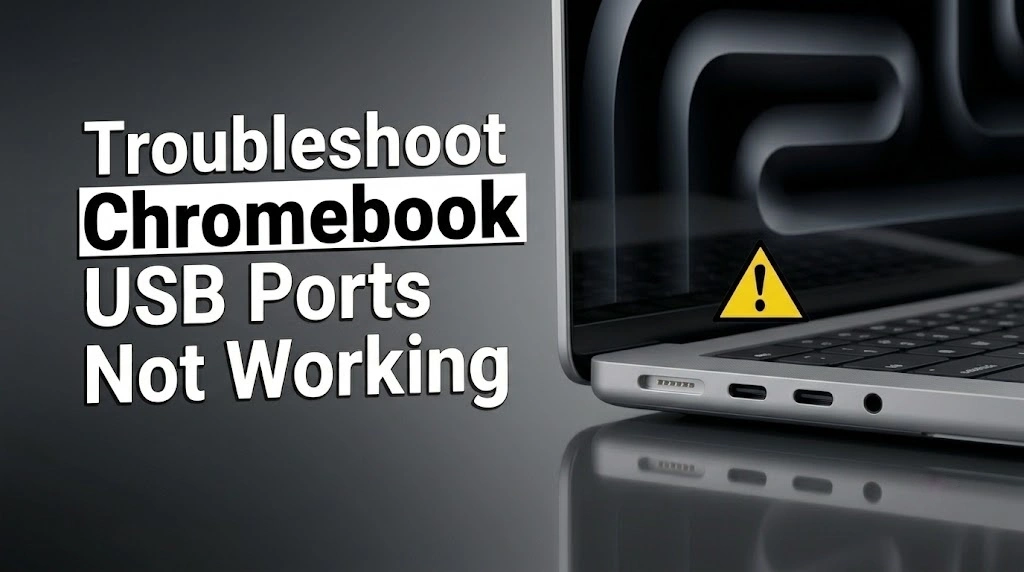
If you’re dealing with Chromebook USB ports not working, you’re not alone. Whether your USB flash drive isn’t showing up, your mouse suddenly stopped responding, or your Chromebook USB-C port isn’t detecting connected devices, this issue can be frustrating and disruptive.
The good news is that most Chromebook USB ports not working problems are caused by software glitches, compatibility issues, or minor hardware problems that can be fixed without replacing your Chromebook.
In this guide, you’ll learn the most common causes of Chromebook USB failures, how to identify the exact problem, and 13 proven fixes that can help restore your USB functionality.
What Causes Chromebook USB Ports Not Working?
Before jumping into fixes, it’s important to understand why the issue occurs.
1. USB Device Compatibility Issues
One of the most common reasons for Chromebook USB ports not working is device compatibility.
ChromeOS works best with:
- FAT32 drives
- exFAT drives
- Most modern NTFS drives
- MTP-compatible Android devices
Older storage devices, specialized peripherals, or unsupported file systems may not be recognized.
Common Symptoms
- Chromebook USB not recognized
- USB flash drive not showing up
- External hard drive detected on Windows but not Chromebook
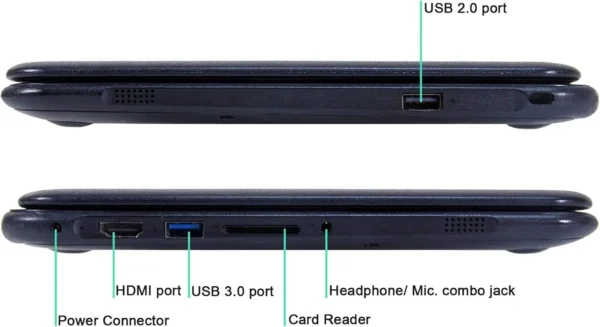
2. Dirty or Damaged USB Ports
Dust, lint, and physical wear can prevent a proper connection.
Common Symptoms
- USB device disconnects randomly
- Device only works when held at a certain angle
- Loose connection inside the port
Even a small amount of debris can interfere with data transfer.
3. ChromeOS Software Problems
System glitches can interrupt communication between ChromeOS and USB hardware.
Possible causes include:
- Failed system updates
- Corrupted settings
- USB controller errors
- Extension conflicts
4. Internal Hardware Failure
If every troubleshooting step fails, the problem may be hardware-related.
Possible faulty components include:
- USB daughterboard
- USB-C board
- Motherboard USB controller
- Internal connectors
This is more likely if all USB ports stop working simultaneously.
How to Identify the Exact Cause
Use the table below to narrow down the source of the problem before troubleshooting.
| Symptom | Most Likely Cause |
|---|---|
| USB drive not detected | File system incompatibility |
| USB device works on another computer | Chromebook issue |
| One USB port works but another doesn’t | Port damage |
| All USB ports stopped working | ChromeOS or motherboard issue |
| USB-C charges but won’t transfer data | USB-C hardware or firmware problem |
| Device disconnects frequently | Dirty or damaged port |
Quick Checks Before Troubleshooting
Before attempting advanced fixes, perform these quick tests.
Test Another USB Device
This helps determine whether the problem lies with the Chromebook or the accessory.
Test Another USB Port
If only one port fails, hardware damage may be involved.
Test the Device on Another Computer
If the device doesn’t work elsewhere, the device itself is likely defective.
Restart Your Chromebook
Many temporary USB recognition problems disappear after a restart.
13 Ways to Fix Chromebook USB Ports Not Working
1. Determine Whether the Device or Chromebook Is the Problem
Test:
- Another USB device
- Another USB port
- Another computer
This simple step often saves a lot of unnecessary troubleshooting.
2. Reconnect the USB Device
Disconnect and reconnect the device securely.
Avoid loose adapters and worn-out cables.
3. Clean the USB Port
Inspect the port carefully.
Use:
- Compressed air
- Soft anti-static brush
Avoid:
- Metal tools
- Excessive force
4. Update ChromeOS
Outdated software can cause compatibility issues.
To update:
- Open Settings
- Select About ChromeOS
- Click Check for Updates
- Install available updates
5. Perform a Hardware Reset
A hardware reset can restore USB controller functionality.
For most Chromebooks:
- Turn off the device
- Hold Refresh
- Press Power
- Release both buttons
6. Check USB Permissions
Certain USB devices may require access permissions.
Review storage permissions and reconnect the device.
7. Boot Into Guest Mode
Guest Mode can help determine whether the problem is caused by user settings or extensions.
8. Disable Browser Extensions
Temporarily disable recently installed extensions and test again.
Some security or file-management extensions can interfere with USB communication.
9. Run Chromebook Diagnostics
Open:
chrome://diagnostics
Check for:
- Hardware failures
- USB-related issues
- System warnings
10. Check for Power Delivery Problems
For USB-C devices:
- Verify charging works
- Test another charger
- Test another USB-C cable
Power delivery failures can prevent proper device detection.
11. Powerwash Your Chromebook
If software corruption is suspected, perform a factory reset.
Before proceeding:
- Back up files
- Sync important data
Then run Powerwash through ChromeOS Settings.
12. Recover ChromeOS
If Powerwash doesn’t solve the issue, reinstall ChromeOS completely using Chromebook Recovery Utility.
Recovery can repair damaged system files that a factory reset cannot fix.
13. Repair or Replace the USB Port
If all software solutions fail, hardware repair may be necessary.
Repairs may involve:
- USB port replacement
- USB-C daughterboard replacement
- Motherboard repair
Chromebook USB Drive Not Showing Up in Files
Sometimes the USB port works correctly, but the storage device still doesn’t appear.
Check the File System
ChromeOS works best with:
- FAT32
- exFAT
- NTFS
Unsupported formats may not mount properly.
Reformat the Drive
If possible:
- Back up data
- Connect the drive to another computer
- Reformat as exFAT
- Reconnect to Chromebook
Verify the Drive Appears in Files
Open the Files app and look under External Storage.
If the drive still doesn’t appear, continue with the troubleshooting steps above.
Chromebook USB-C Port Not Working? Special Troubleshooting Steps
USB-C ports perform multiple functions, including charging, data transfer, and display output.
Verify Charging Functionality
If charging works but data transfer doesn’t, the issue may be firmware-related.
Test External Displays
Some USB-C ports support video output, while others do not.
Check your Chromebook’s specifications.
Check Dock Compatibility
Not all USB-C hubs and docking stations are fully compatible with ChromeOS.
Update Firmware
Firmware updates delivered through ChromeOS often improve USB-C stability.
How to Tell If a USB Port Is Physically Damaged
Look for:
- Bent pins
- Burn marks
- Cracks
- Loose connectors
Warning signs include:
- Frequent disconnects
- Devices only working at specific angles
- No power output
These symptoms usually indicate hardware failure.
How to Prevent Chromebook USB Problems
To reduce future issues:
- Keep ChromeOS updated
- Safely eject storage devices
- Use certified USB-C accessories
- Clean USB ports regularly
- Avoid forcing connectors into ports
- Protect the device from liquids and dust
Frequently Asked Questions
Why are my Chromebook USB ports not working?
Common causes include software glitches, dirty ports, compatibility problems, and hardware damage.
Why does my Chromebook charge but not recognize USB devices?
The USB-C port may have data-transfer issues while still supplying power.
Why is my Chromebook USB-C port not working?
Potential causes include firmware issues, damaged hardware, incompatible accessories, or power delivery failures.
Why does my USB drive work on Windows but not Chromebook?
The drive may use an unsupported file system or require reformatting.
Does ChromeOS support NTFS drives?
Most modern ChromeOS versions support NTFS, though compatibility can vary.
Can Chromebook USB ports be repaired?
Yes. Individual USB ports and USB-C boards can often be replaced without replacing the entire motherboard.
Final Thoughts
Experiencing Chromebook USB ports not working can be frustrating, but most USB problems are caused by software issues, compatibility conflicts, dirty ports, or minor hardware faults.
Start with the simplest fixes—testing another device, cleaning the port, and updating ChromeOS—before moving on to advanced solutions such as Powerwash or ChromeOS Recovery.
If you’ve completed all 13 troubleshooting steps and your Chromebook USB ports not working issue remains unresolved, the problem is likely hardware-related and may require professional repair or replacement of the affected USB components.