Chromebook Screen Frozen? Fixes and Replacement Guide
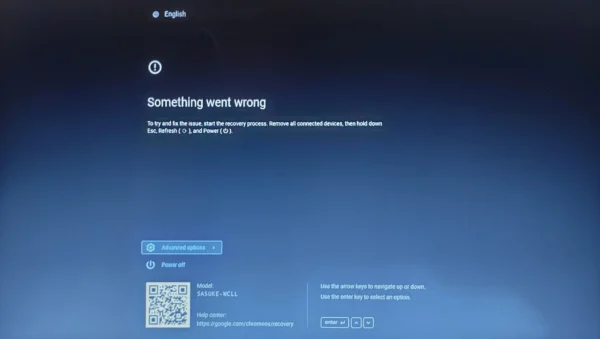
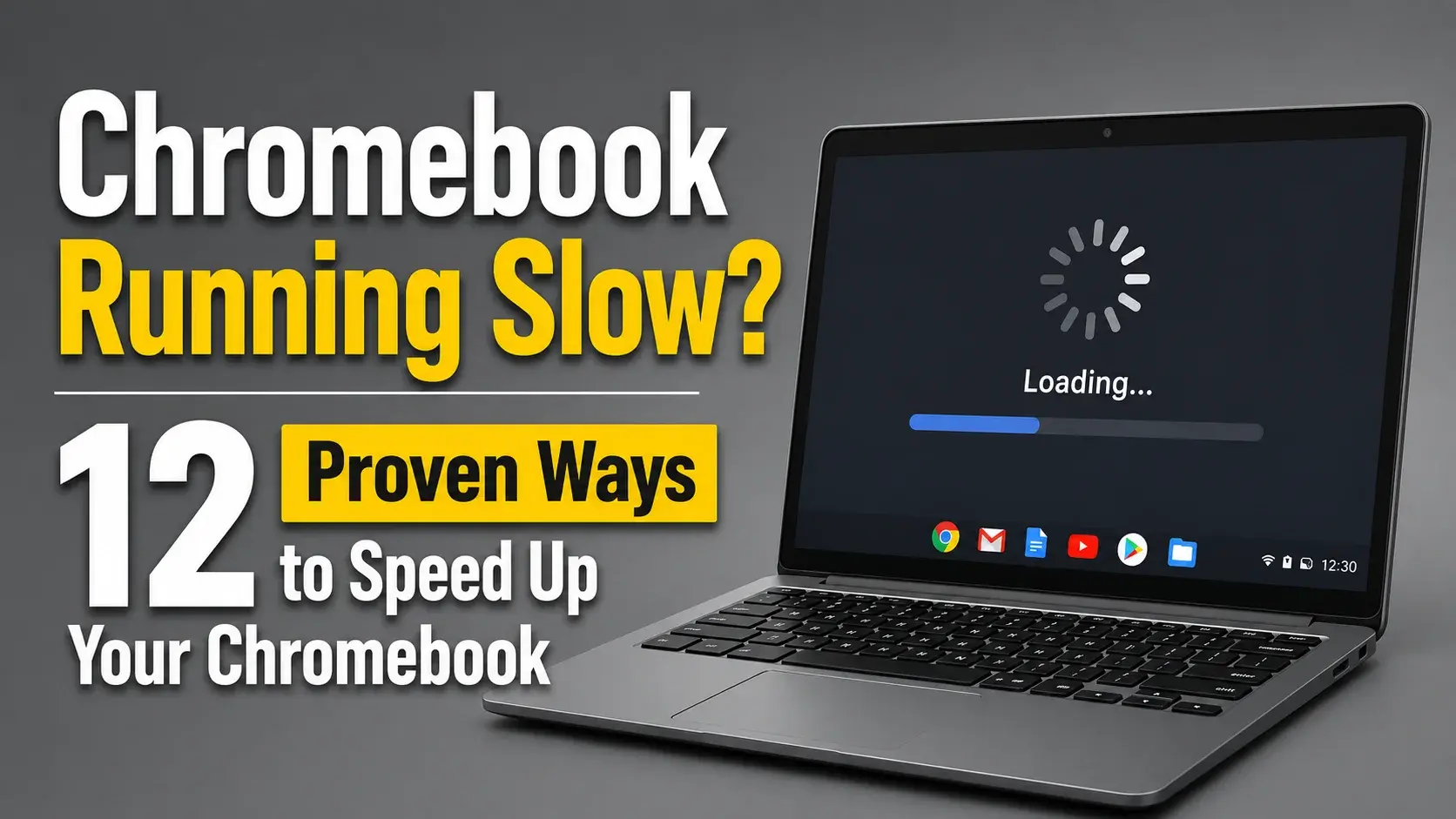
A Chromebook screen frozen issue can happen at the worst time. Whether you are working, studying, or browsing the web, a Chromebook that suddenly stops responding can be frustrating.
In many cases, a frozen Chromebook is caused by temporary software problems, such as too many apps running or ChromeOS errors. However, if your Chromebook screen is frozen repeatedly or the problem started after physical damage, the cause may be related to a hardware component such as the display, screen cable, or touchscreen.
This guide explains the most common causes of a frozen Chromebook screen, troubleshooting steps you can try, and how to tell when a replacement part may be needed.
Why Is My Chromebook Screen Frozen?
A Chromebook can freeze for several reasons, ranging from simple software issues to hardware failures.
Common causes include:
- Too many Chrome tabs or apps running at the same time
- Low storage space
- Outdated ChromeOS software
- Browser extensions causing conflicts
- Temporary system errors
- Damaged display components
- Loose or faulty internal connections
If your Chromebook screen keeps freezing, it is important to identify whether the issue is caused by software or a physical hardware problem.
What to Do When Your Chromebook Screen Is Frozen
Before replacing any parts, try these basic troubleshooting steps.
Restart Your Chromebook
The first solution for a Chromebook screen unresponsive problem is usually a forced restart.
Follow these steps:
- Press and hold the Power button.
- Keep holding it for about 5–10 seconds until the Chromebook turns off.
- Wait a few seconds.
- Press the Power button again to restart the device.
A restart can clear temporary ChromeOS errors and restore normal operation.
Disconnect External Devices
Connected accessories can sometimes cause Chromebook performance issues.
Remove:
- USB drives
- External keyboards
- SD cards
- USB hubs
- External monitors
After disconnecting them, restart your Chromebook and check whether the freezing problem continues.
Update ChromeOS
An outdated ChromeOS version may cause stability problems.
To check for updates:
- Open Settings.
- Select About ChromeOS.
- Check for available updates.
- Install updates and restart your Chromebook.
Keeping ChromeOS updated can help prevent software-related freezing.
How to Fix a Chromebook Screen That Is Not Working
If your Chromebook screen not working issue continues, check whether the problem is related to the display itself.
Try these steps:
- Adjust the screen brightness
- Restart the Chromebook
- Connect an external monitor if available
- Check whether the keyboard and touchpad still respond
If an external monitor works normally but the built-in display remains frozen, the internal screen or display connection may have a problem.
Could a Hardware Problem Cause a Chromebook Screen to Freeze?
Although many freezing issues are software-related, hardware problems can also make a Chromebook screen freeze or become unresponsive.
Hardware-related causes may include:
Damaged LCD Screen
If the Chromebook was dropped, hit, or placed under pressure, the LCD panel may become damaged.
Signs of a damaged screen include:
- Frozen images after physical impact
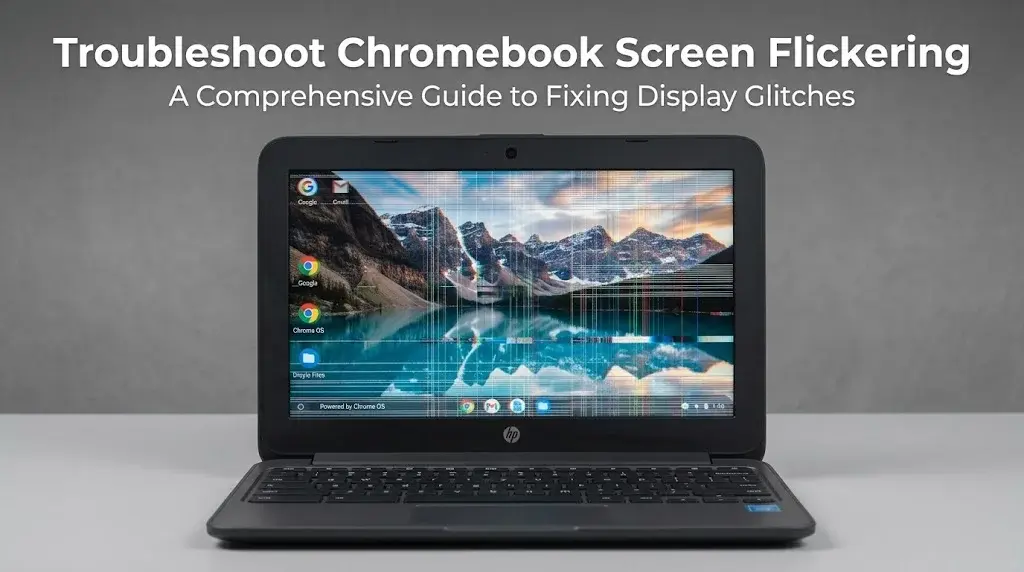
- Flickering display
- Lines or dark areas on the screen
- Screen freezing while the Chromebook is still running
In this situation, replacing the Chromebook screen may solve the problem.
Faulty Display Cable
The cable connecting the screen to the motherboard can become loose or damaged over time.
Possible symptoms:
- Screen freezes when moving the Chromebook lid
- Display cuts in and out
- Random screen problems
A damaged display cable may need inspection or replacement.
Touchscreen or Digitizer Problems
For touchscreen Chromebook models, a faulty digitizer can cause the display to become partially unresponsive.
Common signs include:
- Touch input stops working
- Screen responds incorrectly
- Chromebook screen not responding to touch
How to Tell If Your Chromebook Needs a Replacement Part
Before purchasing a replacement part, compare your symptoms:
| Problem | Possible Cause |
|---|---|
| Chromebook freezes while browsing or running apps | Software issue |
| Screen freezes after dropping the device | LCD screen or cable damage |
| Display shows lines or black spots | Damaged LCD panel |
| Touchscreen stops responding | Digitizer or touchscreen issue |
| External monitor works but built-in screen does not | Internal display problem |
If basic troubleshooting does not solve the issue, the problem may require a replacement Chromebook screen or another internal component.
Why Does My Chromebook Screen Keep Freezing?
If your Chromebook screen keeps freezing, the problem may be caused by repeated software or hardware issues.
Common reasons include:
- Too many programs running at once
- Not enough storage space
- Outdated ChromeOS
- Problematic browser extensions
- Failing hardware components
Try monitoring when the freezing happens. For example:
- Does it happen only when opening certain apps?
- Does it happen after moving the screen?
- Did it start after a drop or impact?
These details can help determine whether you need software troubleshooting or a replacement part.
When Should You Replace a Chromebook Part?
You may need a replacement part if:
- Restarting does not fix the problem
- The screen freezes after physical damage
- The display has visible damage
- The touchscreen no longer responds
- The Chromebook works with an external monitor but not its built-in display
Before ordering a replacement, make sure you check your Chromebook model number to find a compatible part.
Frequently Asked Questions
Why is my Chromebook screen frozen but the mouse still works?
This usually means ChromeOS or an application has stopped responding, while some system functions are still running. Try closing apps, restarting the Chromebook, and checking for updates.
How do I restart a Chromebook when the screen is frozen?
Press and hold the Power button for several seconds until the Chromebook shuts down. Then turn it back on normally.
Why is my Chromebook screen not responding after a drop?
A drop can damage the LCD panel, touchscreen layer, or display cable. If the problem started after physical impact, a hardware inspection may be needed.
Can a broken Chromebook screen cause freezing?
Yes. A damaged display component can sometimes cause display freezing, flickering, or an unresponsive screen, especially after physical damage.
Final Thoughts
A chromebook screen frozen problem does not always mean your device needs repair. Many freezing issues can be fixed by restarting the Chromebook, updating ChromeOS, or removing problematic apps.
However, if your Chromebook screen is frozen, your Chromebook screen not working, or your Chromebook screen unresponsive issue continues after troubleshooting — especially after drops or physical damage — the problem may be related to the display or another hardware component.
Identifying the cause first can help you choose the right solution, whether that means fixing a software issue or replacing a damaged Chromebook part.