Chromebook Screen Flickering: Causes, Fixes, and How to Stop Display Issues Fast
Chromebook screen flickering is one of the most frustrating display issues Chromebook users can encounter. Whether your screen flashes intermittently, dims unexpectedly, or shows flickering lines, the problem can disrupt work, online classes, and everyday browsing. The good news is that Chromebook screen flickering is often caused by identifiable software or hardware issues, and many cases can be fixed without replacing the device.
In this guide, we’ll explain the most common causes of Chromebook screen flickering, walk you through step-by-step troubleshooting methods, and help you determine when a screen replacement or professional repair may be necessary.
What Is Chromebook Screen Flickering?
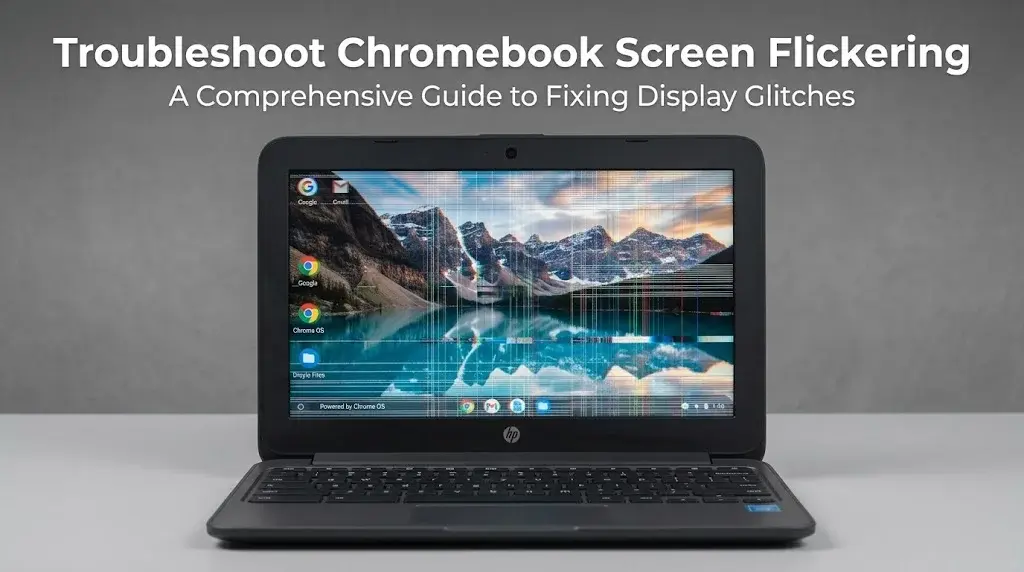
Chromebook screen flickering refers to repeated flashing, blinking, brightness fluctuations, or unstable display behavior. The issue may occur continuously or only under specific conditions.
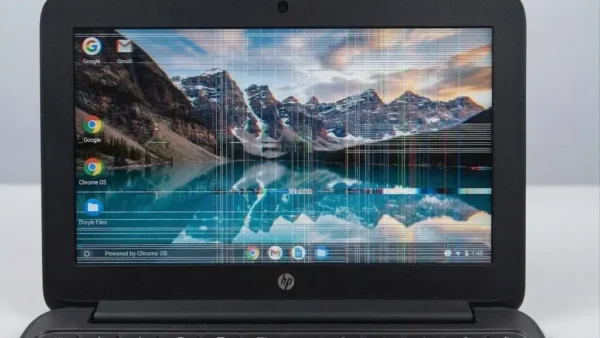
Common symptoms include:
- The screen flashes on and off randomly
- Brightness changes without user input
- Horizontal or vertical lines appear on the display
- The screen flickers when opening or closing the lid
- Flickering occurs during video playback or web browsing
In some cases, the problem is software-related and can be fixed within minutes. In others, it may indicate failing hardware components.
Why Is My Chromebook Screen Flickering? Common Causes Explained
Understanding the root cause is the first step toward finding the right Chromebook display flickering fix.
Software-Related Causes
Outdated ChromeOS
Running an older ChromeOS version can cause display bugs and compatibility issues. Google regularly releases updates that fix graphics and display-related problems.
Corrupted User Profile or Extensions
Some browser extensions may interfere with graphics rendering. A corrupted user profile can also trigger unusual display behavior.
Graphics Rendering Issues
Hardware acceleration conflicts or graphics-related software bugs can result in Chromebook screen flickering, especially when streaming videos or using web-based applications.
Display Settings Problems
Incorrect display configurations, external monitor settings, or resolution mismatches may contribute to flickering issues.
Hardware-Related Causes
Loose or Damaged Display Cable
The display cable connects the motherboard to the LCD panel. If it becomes loose or damaged, the screen may flicker when the lid is moved.
Failing LCD Screen
A damaged LCD panel can cause persistent flickering, lines, dead pixels, or brightness irregularities.
Physical Impact or Liquid Damage
Drops, pressure damage, or liquid exposure may affect internal display components and lead to Chromebook screen flickering.
Battery or Power Issues
An aging battery or unstable power supply can sometimes cause display instability, particularly when charging.
Chromebook Screen Flickering Fix: Start with These Easy Solutions
Before considering repairs, try these simple troubleshooting steps.
Restart Your Chromebook
A basic restart can clear temporary system glitches that may affect display performance.
Update ChromeOS
To check for updates:
- Open Settings.
- Select “About ChromeOS.”
- Click “Check for Updates.”
- Install any available updates.
Many Chromebook screen flickering issues are resolved after updating to the latest version of ChromeOS.
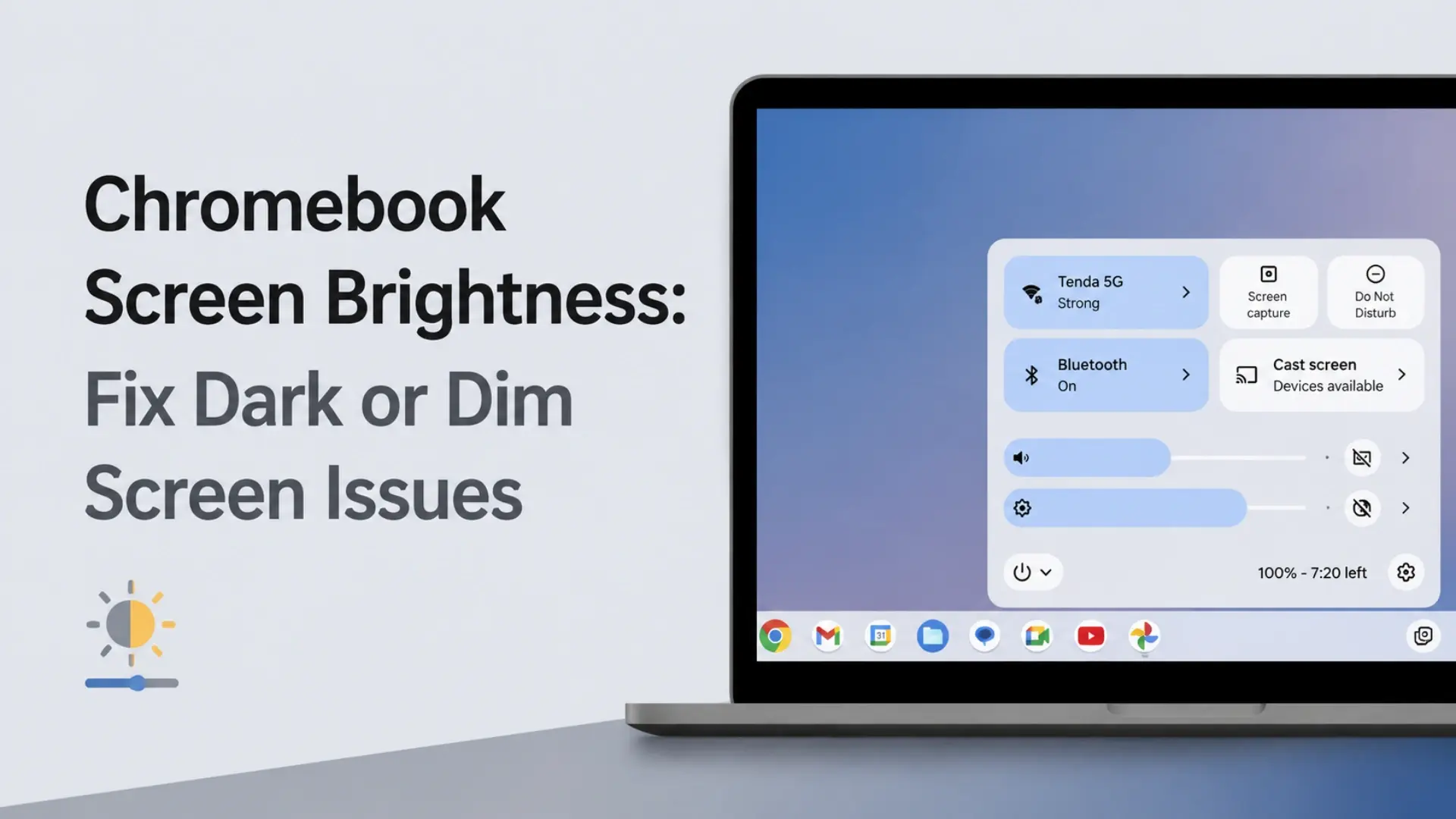
Adjust Brightness Settings
Try lowering or increasing screen brightness to see if the flickering behavior changes. Also disable any automatic brightness settings if available.
Disconnect External Devices
Remove USB devices, docking stations, HDMI cables, and external monitors. Incompatible accessories can sometimes trigger display issues.
Close Resource-Heavy Applications
Multiple browser tabs, Android apps, and video-editing tools may overload system resources and contribute to display instability.
Test in Guest Mode
Guest Mode temporarily disables extensions and user-specific settings. If the flickering disappears, the issue is likely software-related.
Advanced Chromebook Screen Flickering Troubleshooting
If basic fixes do not work, proceed with more advanced troubleshooting.
Perform a Hardware Reset
A hardware reset can resolve power management and display controller issues.
For most Chromebook models:
- Turn off the Chromebook.
- Press and hold Refresh.
- Press the Power button.
- Release Refresh after startup.
Disable Suspicious Extensions
Remove recently installed browser extensions and test whether the issue persists.
Check Chrome Flags
Experimental Chrome Flags can affect graphics performance. Reset modified flags to their default settings.
Run Chromebook Diagnostics
Use the built-in Diagnostics tool to check:
- Battery health
- CPU performance
- Hardware status
Powerwash Your Chromebook
A Powerwash restores factory settings and removes corrupted software configurations. Be sure to back up important files before proceeding.
How to Determine Whether the Screen or Cable Is Causing the Flickering
Diagnosing the exact hardware component can save time and money.
Test with an External Monitor
Connect your Chromebook to an external display.
- If the external display works normally, the LCD screen or display cable is likely the problem.
- If both displays flicker, the issue may involve the motherboard, GPU, or software.
Move the Lid Slowly
If the screen flickers only when the lid is adjusted, a damaged display cable is the most likely cause.
Inspect for Physical Damage
Look for:
- Cracks
- Pressure marks
- Water damage indicators
Signs of a Failing LCD Panel
Common symptoms include:
- Persistent flickering
- Colored lines
- Bright spots
- Image distortion
How to Prevent Chromebook Screen Flickering in the Future
Preventive maintenance can reduce the likelihood of display problems.
Keep ChromeOS Updated
Regular updates help eliminate software bugs that may cause display instability.
Handle the Chromebook Carefully
Avoid excessive force when opening or closing the lid, as this can strain the display cable.
Avoid Pressure on the Screen
Many school-issued Chromebooks experience screen failures due to backpacks, stacking, and accidental pressure.
Use Compatible Chargers
Low-quality chargers can cause unstable power delivery and display issues.
Monitor Battery Health
Replacing a worn battery before it fails completely can help prevent power-related display problems.
When Should You Seek Professional Repair or Replace the Screen?
Some Chromebook screen flickering issues cannot be fixed through software troubleshooting alone.
You should consider screen replacement if:
- The LCD panel is cracked
- Flickering persists after all troubleshooting steps
- The display shows lines, dead pixels, or severe image distortion
You may need a new display cable if:
- Flickering changes when moving the lid
- The screen intermittently goes black
If an external monitor also shows display problems, professional diagnosis may be necessary to evaluate motherboard-related issues.
Checking our chromebook replacement screen buying guide before if you’re not sure how to choose the right one.
Conclusion: Fixing Chromebook Screen Flickering Starts with Proper Diagnosis
Chromebook screen flickering can result from software bugs, incorrect display settings, damaged display cables, failing LCD panels, or power-related issues. Fortunately, many cases can be resolved through simple troubleshooting steps such as updating ChromeOS, restarting the device, or performing a hardware reset.
If the problem persists after software troubleshooting, testing with an external monitor can help identify whether the issue lies with the screen, display cable, or another hardware component. By diagnosing the problem accurately and replacing damaged parts when necessary, you can restore your Chromebook to reliable working condition and avoid unnecessary downtime.