How to Fix a Chromebook Black Screen: The Ultimate Troubleshooting Guide
Few things are more frustrating than opening your laptop to work or study only to be met with a blank display. If you are experiencing a chromebook black screen, you are not alone. This is a common issue faced by many users, and it does not necessarily mean your device is permanently broken. In most cases, the problem stems from a simple software glitch, a drained battery, an incorrect brightness setting, or an internal connection issue.
This step-by-step guide will walk you through the entire troubleshooting process. We will cover everything from rapid diagnostics to advanced recovery methods so you can get your computer back up and running quickly.
Quick Diagnostics: Why Is Your Chromebook Screen Black?
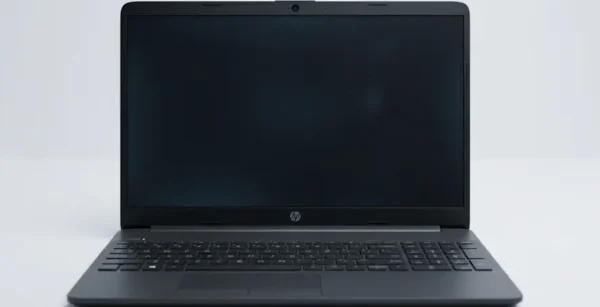
Before jumping into complex solutions, it is important to understand the current state of your device. Knowing whether your computer is completely powerless or simply frozen helps you choose the right fix. This section teaches you how to identify the signs of a chromebook black screen versus a total power failure.
Is it a frozen Chromebook display or a power issue?
Sometimes, a laptop might be fully powered on, but the operating system has frozen, leaving the monitor completely dark. To tell the difference, look closely at the device. If you can hear the internal fan spinning or feel slight heat coming from the chassis, your system is likely running, but you are experiencing a frozen Chromebook display. If there is no sound or heat at all, the issue is rooted in the power delivery system.
Checking the LED status indicators on a black screen Chromebook
Every ChromeOS device features small LED indicator lights, usually located near the charging port or on the side of the chassis. Take a close look at these lights on your black screen chromebook. A solid green or white light means the computer has full power and is turned on. A blinking or solid orange light means the battery is charging or critically low. If no lights appear when you press the power button or plug in the charger, you are dealing with a severe power component failure.
Step-by-Step Solutions for Chromebook Black Screen Fix
If your device shows signs of life but the display remains completely dark, follow these prioritized steps. We have arranged these solutions by complexity and likelihood of success, starting with the easiest chromebook black screen fix.
Fix 1: Check the charger and battery (Chromebook won’t turn on)
If your chromebook won’t turn on, the battery might be suffering from deep discharge. Connect your original manufacturer charger to the charging port.
Leave the laptop plugged into a wall outlet for at least 30 minutes without touching it.
If your model charges via USB-C, try switching to the port on the opposite side of the laptop, as individual ports can occasionally fail. After 30 minutes, try powering it on again.
Fix 2: Perform a Hard Reset on your black screen Chromebook
A hard reset drains residual electricity from the embedded controller (the chip managing your keyboard, battery, and display), forcing the hardware to reinitialize. This is the most successful chromebook black screen solution for software lockups.
Turn off the device completely by holding the Power button for 10 seconds.
Press and hold the Refresh key (the key with a circular arrow icon, usually above the 3 or 4 key).
While holding the Refresh key, press and hold the Power button.
Keep holding both keys down for about 10 seconds.
Release the Refresh key first, followed by the Power button. The system should reboot automatically.
Fix 3: Adjust screen brightness (The accidental black screen Chromebook)
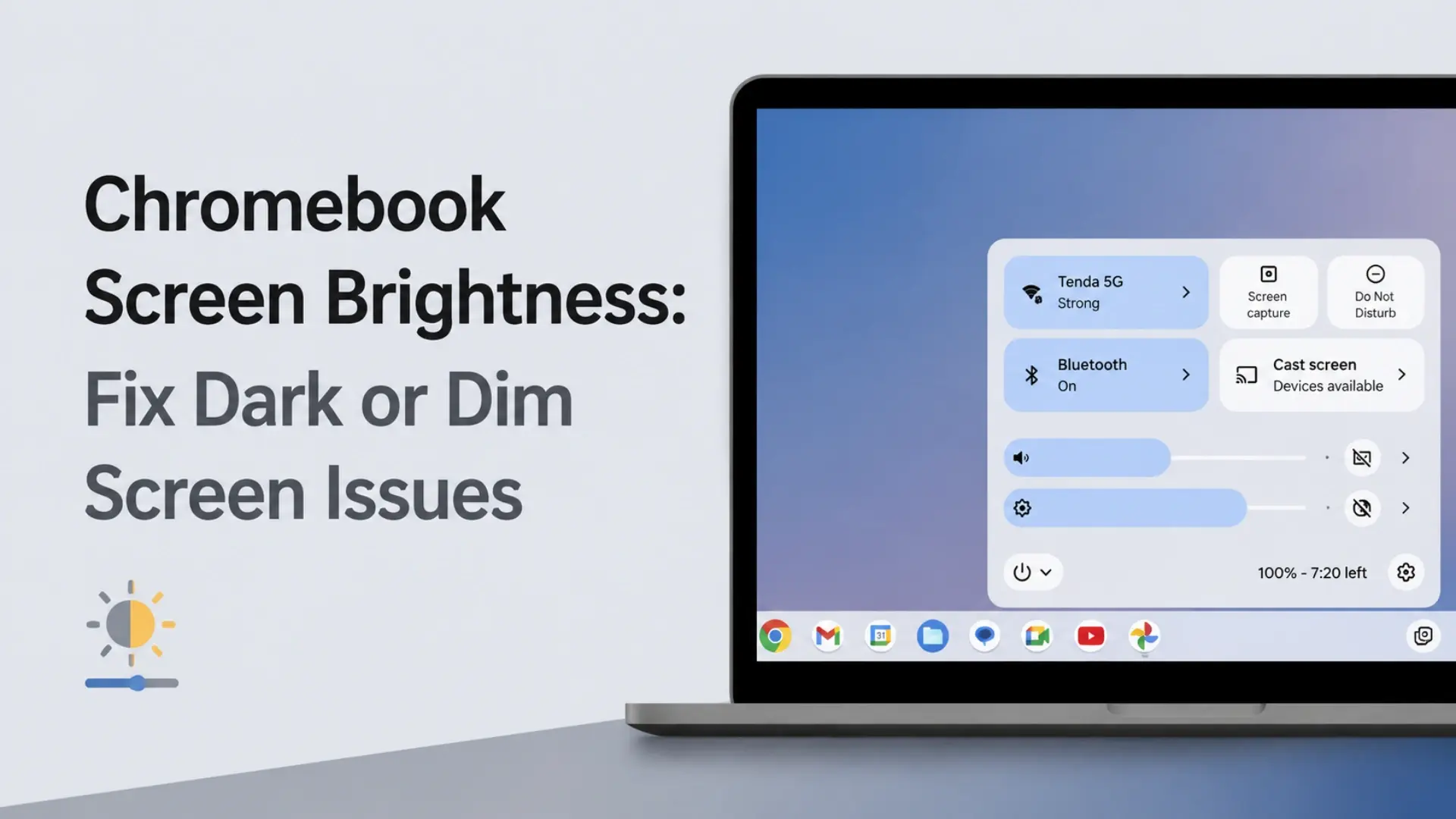
It sounds simple, but users frequently turn their display brightness all the way down by accident, mimicking a hardware failure. Locate the Brightness Up key on the top row of your keyboard (it looks like a large sun icon). Tap this key multiple times or press and hold it for 5 seconds to see if your desktop image reappears.
Fix 4: Disconnect USB peripherals to resolve conflicts
External devices like USB flash drives, SD cards, external hard drives, or USB mice can sometimes disrupt the normal boot sequence of ChromeOS. Unplug every single accessory connected to your device, wait two minutes, and then perform a hard reboot. If the display turns back on, one of your accessories is causing a hardware conflict.
Fix 5: Wake up a frozen Chromebook display with keyboard shortcuts
If the system is awake but the graphic drivers are unresponsive, you can attempt to force the operating system to refresh the display panel. Press the following keyboard combination simultaneously:
This shortcut sends a direct command to ChromeOS to wake up a frozen Chromebook display and reset the graphics subsystem.
Advanced Troubleshooting for Chromebook Black Screen on Boot
If standard user-level fixes do not resolve the issue, you may be facing a corrupted operating system or an internal physical disconnect. These advanced steps help pinpoint the breakdown.
Fix 6: Boot into Recovery Mode to fix ChromeOS firmware corruption
A Chromebook black screen on boot can happen if a recent background system update failed or corrupted the operating system files. You can verify if the display itself works by forcing the laptop into Recovery Mode.
Press and hold the Esc key and the Refresh key at the same time.
While holding those two keys, tap the Power button once.
Release the Esc and Refresh keys when a message appears on the monitor.
If your screen turns on and displays a message saying “ChromeOS is missing or damaged,” your hardware is completely fine, and you just need to reinstall the operating system using a USB recovery drive.
Fix 7: Connect to an external monitor to test for a faulty LCD panel
If your laptop is completely responsive, plays startup sounds, but the built-in monitor remains dark even in Recovery Mode, the screen hardware itself might be broken. Connect the laptop to an external TV or desktop monitor using an HDMI cable or a USB-C-to-HDMI adapter. If the ChromeOS desktop shows up perfectly on the external monitor, your computer is functioning fine, but the internal LCD screen panel or its display cable is broken and needs physical replacement.
Top Reasons for a Chromebook Black Screen Solution
Understanding why your hardware failed is the best way to choose a permanent chromebook black screen solution. Most blank displays are caused by specific software anomalies or internal hardware degradations:
Corrupted ChromeOS updates and black screen on boot
Google issues ChromeOS updates every few weeks. If your laptop loses internet connectivity or shuts down due to a dead battery right in the middle of writing a firmware update, it can experience a chromebook black screen on boot. The system gets stuck in an infinite boot loop because it cannot load the corrupted core system files.
Bad Chrome Flags
Chrome Flags allow users to test experimental browser features. However, enabling unstable flags can occasionally cause the entire user interface shell to crash repeatedly upon logging in, manifesting as a blank display. If you suspect this is the case and can briefly access the browser, navigating to chrome://flags and clicking Reset all can resolve the loop.
Hardware failures: Internal display cables, screen panels, or failing battery
Laptops endure a lot of physical movement. Over time, physical wear can lead to distinct mechanical faults:
Loose or damaged display cables: The fragile ribbon cable (EDP cable) that connects the motherboard to the LCD panel can wiggle loose inside the hinge assembly or fray from repeated opening and closing. This results in a scenario where the computer turns on, but no data reaches the display panel.
Faulty screen backlight: The internal LCD panel or its backlight inverter might have failed entirely. If you shine a flashlight closely at the dark screen and can faintly see your desktop icons, the screen matrix works, but the backlight hardware is dead.
Failing motherboard components or battery: An aging lithium-ion battery that can no longer hold a stable voltage, or a failed power rail on the motherboard, will cause the system to crash into a dark screen state immediately upon booting.
Proactive Tips: How to Prevent a Chromebook Screen Black Issue
Once you get your device running again, taking care of your system will ensure you do not have to deal with a sudden chromebook screen black crisis in the future.
Keeping your ChromeOS updated safely
Never close your laptop lid or unplug it from power when you see a notification stating that an update is installing. Always allow the device to finish its update cycle completely. To keep your system stable, go to Settings > About ChromeOS > Check for updates once a week to install small patches before they stack up into massive, risky updates.
Avoiding deep battery discharge and physical stress
Avoid letting your laptop battery drop to 0% frequently. When a lithium-ion battery sits at absolute zero charge for long periods, it enters a deep discharge sleep state that requires a hardware reset to wake up. Additionally, avoid placing heavy textbooks on top of your closed laptop, as localized pressure can permanently damage the internal display panel.
When to Seek Professional Help and Warranty Options
If you have tried every fix in this guide—including a hard reset and testing with an external monitor—and the system remains unresponsive, it is time to look at professional repair paths.
Checking your Chromebook warranty and AUE (Auto Update Expiration) date
Before paying a repair shop out of pocket, check if your device is covered under warranty. Google provides an official portal where you can look up your device’s Auto Update Expiration (AUE) date. If your laptop is less than a year old, or if it is a corporate or school-managed Chromebook, hardware defects are often covered entirely by the manufacturer or your organization’s IT policy.
Finding certified Chromebook repair services
If you need to seek physical repair, look for technician centers that specialize in ChromeOS architectures. Brands like ASUS, HP, Lenovo, and Acer have certified repair partners who can quickly open the casing to re-seat loose monitor cables, patch a damaged display interface, or replace a faulty motherboard power rail safely.
FAQ: Frequently Asked Questions About Chromebook Black Screen
Q1: Why is my Chromebook on but the screen is black?
A Chromebook that is turned on but has a completely black display typically points to a frozen system module, an accidental drop to zero brightness, an experimental Chrome flag glitch, or a disconnected internal display cable. Start by pressing the brightness increase button multiple times or execute a hard reset by holding the Refresh and Power buttons together to see if the interface reboots.
Q2: How do you unfreeze a Chromebook when the screen is black?
To unfreeze a Chromebook Black Screen, hold down the Refresh key and click the Power button. Keep both held down until you see the screen or keyboard backlight blink, then let go. This forces a physical power cycle on the components without deleting any of your local data.
Q3: What does it mean when your Chromebook won’t turn on and shows a black screen?
When your Chromebook won’t turn on and remains completely dark, it usually indicates that the battery has dropped into a deep protection state due to absolute power drainage, or the charging cable itself is broken. Plug the device into a known working wall outlet using an official charger for 30 minutes before trying to turn it on.
Q4: Can a school-managed Chromebook black screen be fixed at home?
You can safely perform basic external troubleshooting at home, such as checking the charging cables, increasing the screen brightness, or performing a hardware reset using the keyboard. However, if the device requires an operating system reinstallation via Recovery Mode or physical disassembly, you must hand it over to your school’s IT department due to administrative locks and warranty liabilities.
Q5: How do I know if my Chromebook screen is broken or if it’s a software issue?
The easiest way to tell is by connecting the laptop to an external TV or desktop monitor via an HDMI cable. If your operating system desktop appears clearly on the external screen while the laptop screen stays dark, you are dealing with a physical hardware breakdown of the LCD screen or a loose ribbon cable. If both displays are completely dark, the issue lies in the system’s core software or power supply.
For a visual step-by-step demonstration on how to power cycle your device and execute these key combinations, you can check out this helpful Chromebook Troubleshooting Video. This short video tutorial guides you through the physical button locations and exact timing required to reset a completely unresponsive display.