How to Fix a Chromebook White Screen of Death
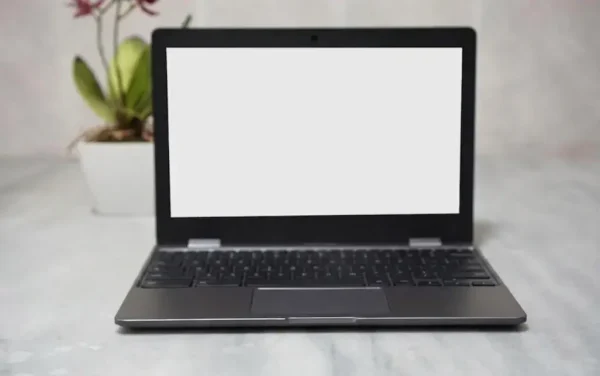
Staring at a blank, glowing Chromebook white screen can be incredibly stressful, especially if you are in the middle of a school project or a critical workday. This issue, often dubbed the “White Screen of Death,” effectively freezes your device and leaves you unable to access your files or browser.
Don’t panic just yet. A white display doesn’t automatically mean your laptop is permanently broken. The culprit behind a Chromebook white screen can range from a simple software freeze or display settings glitch to loose internal display cables or motherboard complications.
This comprehensive troubleshooting guide walks you through the exact reasons why your screen went white and provides actionable, step-by-step methods to fix it. We will start with the easiest, non-invasive software checks first before moving on to deeper hardware inspections.
What Causes the Chromebook White Screen Error?
Before jumping into the solutions, it helps to understand what is happening under the hood. A Chromebook white screen is typically triggered by one of five primary issues:
Display Settings & High Contrast Glitches: Sometimes, experimental Chrome flags or bugs in the Chrome OS accessibility settings cause the contrast and brightness levels to misbehave, wiping out all visual details into a solid white field.
Chrome OS Corruption: A system update that got interrupted, a corrupted user profile, or a temporary system cache freeze can prevent the Chrome OS user interface (UI) from rendering correctly.
Defective or Broken LCD Panel: Physical damage to the internal display glass—even microscopic hairline cracks from a recent drop—can cause the liquid crystal display to fail and glow solid white.
Faulty or Loose Display Cable: The video ribbon cable running through the laptop’s hinge connects the motherboard to the screen. If it wriggles loose, gets pinched, or suffers liquid damage, the screen loses its data feed while maintaining power, resulting in a white display.
Motherboard or Component Damage: Severe overheating, failed cooling fans, a corrupted BIOS, unseated RAM modules, or shorted components on the motherboard can completely halt video output.
Step-by-Step Fixes for a Chromebook White Screen
If you are currently facing a Chromebook white screen, work your way through these troubleshooting steps in order.
1. Perform a Hardware Reset (Hard Refresh)
If a standard power-button restart doesn’t clear the blank screen, you should perform a hardware reset. This process completely drains the residual power from the motherboard and forces the controller chips to restart without erasing any of your personal cloud data.
2. Isolate the Display Settings & External Monitors
If your Chromebook boots up but immediately turns white, your system settings or an experimental browser flag might be causing a display loop.
Test with an External Monitor: Plug your Chromebook into an external monitor or TV using an HDMI or USB-C cable. If the external monitor displays your desktop normally but your laptop screen stays white, your operating system is functioning correctly—meaning the issue is isolated to your laptop’s display settings or physical hardware.
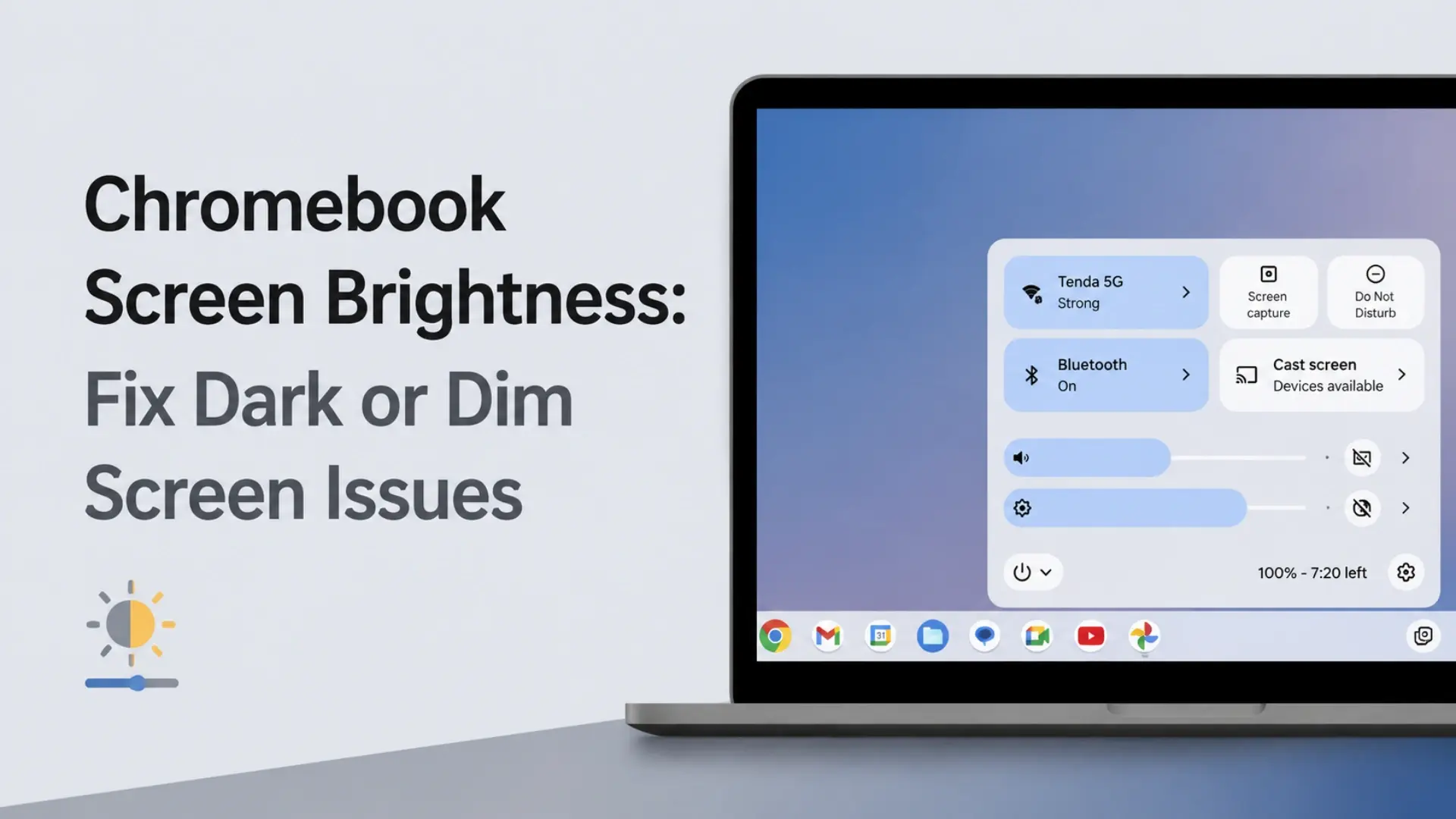
Adjust Brightness and Contrast: Click on the clock in the bottom right corner taskbar, select the Brightness icon, and adjust the slider. Additionally, navigate to Settings > Accessibility and ensure that high-contrast modes or experimental screen-enhancement settings aren’t turned on.
Reset Chrome Flags: If you recently modified experimental features, open Chrome, type chrome://flags into the address bar, and click Reset all in the upper right corner to clear potential graphics driver conflicts.
3. Check for OS Corruption with Guest Mode or a Powerwash
If the screen turns white only after you log into your profile, a corrupted user account cache, malicious extension, or buggy Android application is likely crashing the Chrome OS user interface.
Log in via Guest Mode: On the main login screen, click Browse as Guest at the bottom of the screen. Because Guest Mode disables all extensions and external apps, a functional display here proves that a rogue app under your main profile is causing the problem. Uninstall any extensions you added right before the issue began.
Perform a Factory Reset (Powerwash): If the system remains completely unresponsive, you may need to factory reset the operating system. Press Ctrl + Alt + Shift + R simultaneously on the login screen to bring up the Powerwash prompt.
(Important Note: Running a Powerwash will erase all local files stored in your “Downloads” folder. Any data synced to your Google Drive, cloud storage, or saved passwords will remain completely intact.)
Hardware Troubleshooting: Pinpointing Physical Damage
If your screen remains completely white even during boot or after attempting a system reset, you are likely dealing with a physical component failure.
4. Inspect the LCD Panel for Damage
Turn off the Chromebook, unplug any charging cables, and take the device to a well-lit room. Tilt the screen backward and forward at different angles under a direct light source.
Look closely for subtle, hairline cracks under the top layer of glass or any signs of internal liquid bleeding. If you spot any physical fractures, the internal pixels can no longer receive graphical data. The only fix for a physically broken panel is to source a compatible replacement LCD screen and install it.
5. Check the Internal Display Cable Connection
If the glass shows absolutely no physical signs of damage, the video ribbon cable inside the chassis is the next most likely culprit.
Every time you open and close your laptop, the display cable flexes inside the hinge mechanism. Over time, or following a sharp drop, this cable can slide partially out of its socket on either the back of the LCD panel or the motherboard.
To diagnose this, you will need to open the device casing (using an electronics repair guide specific to your Chromebook model). Inspect the long ribbon cable running from the screen to the motherboard. Ensure both ends are fully seated, straight, and locked down by their retention clips. Look closely for any signs of fraying, tears, or dark burn marks on the gold pins. If the cable is torn or pin connections are burnt, the display cable must be replaced.
6. Diagnose Motherboard Complications
When the underlying issue isn’t the screen or the cable, the problem sits squarely with the motherboard. Component-level motherboard damage can freeze the video chip while sending raw power to the screen backlight, creating a permanent blank white glow.
Cooling System Failures: Some Chromebook models experience cooling fan or heatsink failures when the internal daughterboard cables shake loose. Excessive heat can cause the central processor (CPU) to lock up instantly during boot. Clean out any accumulated dust or debris blocking the internal vents.
Reseat the RAM Modules: If your model features modular, removable RAM sticks, a memory module that has shifted slightly out of place can halt post-boot video output. Unclip the RAM, clean the contacts gently, and snap it securely back into the slot.
Reset the BIOS via CMOS: If a corrupted firmware configuration is blocking the motherboard from booting, you can clear the hardware cache by carefully disconnecting the internal CMOS battery (the small, round watch-style battery wrapped in plastic on the board), waiting two minutes, and plugging it back in to restore factory defaults.
Chromebook White Screen Frequently Asked Questions
Can a dead battery cause a Chromebook white screen?
Usually, a completely dead or failing battery results in a totally black screen with no signs of life. However, if the battery is failing to supply stable, regulated voltage to the motherboard, it can cause the graphics initialization chips to freeze mid-boot, occasionally leaving the backlight stuck on a solid white display. Try charging the device with an official OEM charger for 30 minutes before forcing a hardware refresh.
What should I do if my screen stays white after a factory reset?
If a complete software Powerwash or an OS recovery via a bootable USB drive fails to resolve the white display, the problem is hardware-based. This points directly to a loose internal display connection, a failing LCD driver board, or permanent motherboard damage. At this stage, you will need to inspect the internal connections yourself or take the laptop to a technician.