The Ultimate Chromebook Shortcuts Guide: Master Your ChromeOS Keyboard
Stop clicking through endless settings menus and tearing your hair out over a frozen page. If you want to transform the way you navigate ChromeOS, mastering Chromebook shortcuts is the single fastest way to shave hours off your work or school week. Whether you are a student rushing to finish a research paper, a professional multitasking across thirty browser tabs, or a technician managing a fleet of devices, learning these native commands changes everything.
Many users treat their Chromebooks like basic web-browsing laptops, entirely unaware of the incredible efficiency built directly into the hardware. By integrating key combinations into your daily routine, you can completely bypass the trackpad, recover from system hangs instantly, and manage your workspace like a true power user.
Let’s dive into the essential, advanced, and hidden Chromebook shortcuts that will turn you into a ChromeOS speed demon.
Essential Chromebook Shortcuts Every User Should Know
When you first open a ChromeOS device, the keyboard layout can look a little confusing. The familiar Windows or Command keys are gone, replaced by a unique top row and a mysterious key with a magnifying glass or circle icon. That specific key is known as the Everything Button (or the Search/Launcher key), and it is the secret sauce behind many of the best Chromebook shortcuts.
Before exploring complex system actions, you need to commit these fundamental everyday Chromebook keyboard shortcuts to muscle memory. They form the backbone of smooth, friction-free daily navigation.
| Action | Keyboard Shortcut | Windows/Mac Equivalent |
| Copy Selected Text | Ctrl + C | Ctrl + C / Cmd + C |
| Paste Selected Text | Ctrl + V | Ctrl + V / Cmd + V |
| Open a New Browser Tab | Ctrl + T | Ctrl + T / Cmd + T |
| Close Current Browser Tab | Ctrl + W | Ctrl + W / Cmd + W |
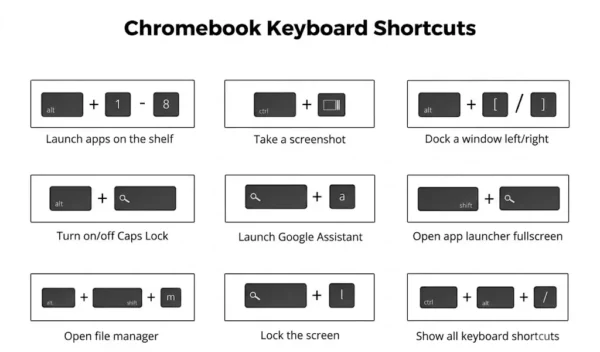
| Lock Your Screen Instantly | Search + L | Win + L / Ctrl + Cmd + Q |
| Take a Full Screenshot | Ctrl + Show Windows (Top Row) | PrntScrn / Cmd + Shift + 3 |
Advanced Productivity Chromebook Shortcuts for Power Users
Once you have mastered the basics, it is time to optimize your workspace. If you constantly find yourself juggling multiple projects or getting lost in a sea of overlapping web apps, these advanced productivity Chromebook shortcuts will help you organize your screen in seconds.
Split Screen & Window Snapping
You do not need to manually drag and resize side-by-side windows to take notes while watching a lecture or analyzing a spreadsheet.
Press Alt + [ to instantly snap your active window to the left half of the screen.
Press Alt + ] to snap it to the right half.
Virtual Desks Isolation
When a single desktop gets too cluttered, separate your workflows entirely. Press Shift + Search + = to create a brand-new Virtual Desk. You can then use Search + [ or Search + ] to switch between your clean workspaces seamlessly, keeping your schoolwork, gaming, or business tasks completely isolated.
Extended Clipboard History
We all know how frustrating it is to copy something new, only to realize you accidentally overwrote an important link you copied five minutes ago. ChromeOS solves this beautifully. Press Search + V to reveal your extended clipboard history. This displays the last five items you copied, allowing you to paste older text blocks or links on demand.
Hidden Chromebook Shortcuts You Probably Didn’t Know
Beyond standard productivity, ChromeOS hides a few incredible utility commands deep within its operating system. These hidden Chromebook shortcuts are perfect for adding flair to your messages or fixing accidental viewing issues.
The Emoji Picker: Don’t waste time right-clicking to find emojis. Press Ctrl + Shift + Space to bring up the native emoji selection panel anywhere you are typing.
Screen Rotation: Did you accidentally flip your display upside down while cleaning the keyboard? Don’t panic. Press Ctrl + Shift + Refresh (the circular arrow key on the top row) to rotate your screen 90 degrees at a time.
System Task Manager: When a webpage becomes completely unresponsive and causes your laptop to lag, you don’t have to restart the whole computer. Press Shift + Esc to launch the Google Chrome Task Manager. From here, you can see exactly which tab is hogging your CPU or memory and terminate it instantly.
Hardware Troubleshooting & System Reset Shortcuts
When troubleshooting complex hardware anomalies or dealing with a completely frozen system, knowing the right Chromebook hardware shortcuts can save you a trip to a repair shop or IT helpdesk. If your computer stops reacting to your trackpad or keyboard inputs, follow these sequence steps carefully to perform an emergency system intervention.
Frequently Asked Questions: Overcoming Missing Keys
How do I turn on Caps Lock on a Chromebook?
Because ChromeOS keyboards prioritize a streamlined layout, you won’t find a dedicated Caps Lock key. Instead, you can toggle it by pressing Alt + Search (or Alt + Launcher). A small pop-up notification will appear on your screen confirming that Caps Lock is active. Simply press the same combination again to turn it off.
Where are the F1 through F12 Function keys?
The top row of your keyboard features dedicated media and system control icons instead of traditional function keys. However, you can still access standard function keys easily. Hold down the Search key while pressing a top-row key corresponding to its numerical position (for example, Search + Back Arrow acts as F1, and Search + Refresh acts as F2). If you prefer the traditional behavior permanently, navigate to Settings > Device > Keyboard and enable the toggle to treat the top row as standard function keys.
Next Steps: Put Your Knowledge Into Practice
Don’t expect to memorize every single one of these Chromebook shortcuts overnight! The best way to build long-term muscle memory is to pick two or three combinations from this guide—like the split-screen layout or the clipboard history viewer—and consciously use them throughout your next few study or work sessions.