Chromebook Overheating: Causes, Fixes, and Prevention Tips
Chromebook overheating is one of the most common issues Chromebook users encounter, especially when devices are used for extended periods, online learning, video conferencing, or multitasking. If your Chromebook feels unusually hot, the fan is constantly running, or the device suddenly slows down or shuts off, overheating may be the cause.
The good news is that most Chromebook overheating problems can be resolved without replacing hardware. In this guide, you’ll learn the most common causes of Chromebook overheating, how to diagnose the issue, effective troubleshooting steps, and practical prevention tips to keep your Chromebook running smoothly.
Why Does Chromebook Overheating Happen?
Understanding what causes Chromebook overheating is the first step toward fixing the problem.
Too Many Tabs and Applications Running
Chromebooks are designed to handle everyday browsing and productivity tasks efficiently, but opening dozens of tabs simultaneously can significantly increase CPU and memory usage. Streaming videos, participating in virtual meetings, running Android apps, and using web-based editing tools at the same time can put additional stress on the system.
When the processor works harder, it generates more heat. Over time, excessive resource usage can lead to Chromebook overheating and reduced performance.
Dust and Blocked Air Vents
Many Chromebook models rely on passive cooling or limited airflow to maintain safe operating temperatures. Dust accumulation inside air vents can restrict airflow and trap heat inside the device.
This issue is particularly common in school environments where Chromebooks are used daily and rarely cleaned.
High Ambient Temperatures
External temperatures can have a major impact on device performance. Using a Chromebook outdoors in direct sunlight or in a poorly ventilated room may cause internal temperatures to rise quickly.
Even a healthy device can experience Chromebook overheating when exposed to excessive environmental heat.
Charging-Related Heat
It is normal for a Chromebook to become slightly warm while charging. However, if the device becomes excessively hot during charging, the issue may be related to:
- An aging battery
- A damaged charging cable
- A non-original charger
- Running demanding applications while charging
Hardware Problems
Although less common, faulty hardware can also contribute to Chromebook overheating. Potential causes include:
- Battery degradation
- Cooling system failure
- Motherboard-related issues
If overheating persists despite troubleshooting, hardware inspection may be necessary.
How to Identify Chromebook Overheating Symptoms
Before attempting repairs, it’s important to determine whether your Chromebook is actually overheating.
Common Signs of Chromebook Overheating
Watch for the following symptoms:
- The bottom of the Chromebook feels unusually hot
- The fan runs continuously at high speed
- System performance becomes sluggish
- Chrome browser tabs freeze or crash
- Unexpected restarts or shutdowns
- Rapid battery drain
These symptoms often indicate excessive heat buildup inside the device.
Check Resource Usage
ChromeOS includes a built-in Task Manager that allows users to monitor system resources.
To access it:
- Open Chrome.
- Press Search + Esc.
- Review CPU and memory usage.
If a particular tab or application is consuming excessive resources, closing it may immediately reduce heat generation.
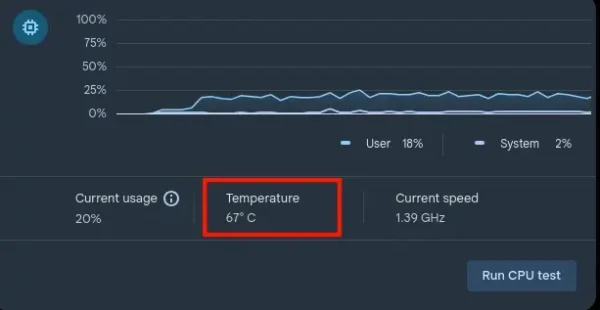
Run ChromeOS Diagnostics
Many modern Chromebooks include built-in diagnostics tools that can help identify hardware-related issues affecting performance and temperature.
Use these tools to check:
- Battery health
- CPU performance
- Memory status
Chromebook Overheating Quick Fixes
If you’re experiencing Chromebook overheating, try these simple solutions first.
Close Unnecessary Tabs and Applications
Every open browser tab consumes memory and processing power. Streaming platforms, AI tools, cloud-based software, and video conferencing applications are especially resource-intensive.
Closing unused tabs can significantly lower CPU usage and reduce heat.
Restart Your Chromebook
A simple restart clears temporary processes and background tasks that may be consuming resources.
Restarting is often one of the fastest ways to resolve minor Chromebook overheating issues.
Move to a Cooler Environment
Environmental temperature plays a significant role in device cooling.
To improve airflow:
- Move away from direct sunlight
- Use the Chromebook in an air-conditioned room
- Avoid hot vehicles or outdoor surfaces
Remove Cases or Covers
Protective cases can sometimes block ventilation areas and trap heat around the device.
If your Chromebook is overheating, temporarily remove the case and monitor temperature changes.
Disconnect Unused Accessories
External devices such as USB drives, docking stations, and external monitors can increase power consumption and generate additional heat.
Disconnect unnecessary accessories when troubleshooting.
Allow the Device to Cool Naturally
If your Chromebook becomes extremely hot, shut it down and allow it to cool naturally for 15–30 minutes.
Avoid placing it in a refrigerator or exposing it to moisture, as sudden temperature changes can damage internal components.
Advanced Chromebook Overheating Troubleshooting
If basic fixes do not solve the problem, proceed with more advanced troubleshooting methods.
Update ChromeOS
Software bugs can occasionally cause abnormal CPU activity and excessive heat generation.
To check for updates:
- Open Settings.
- Select About ChromeOS.
- Click Check for Updates.
Installing the latest version can improve system efficiency and reduce Chromebook overheating risks.
Review Installed Extensions
Browser extensions can consume significant resources, especially poorly optimized ones.
Disable extensions one at a time and monitor whether temperatures improve.
Common offenders include:
- VPN extensions
- Ad blockers
- Productivity suites
- Video download tools
Identify Resource-Heavy Websites
Some websites use substantial CPU power due to:
- Auto-playing videos
- Complex animations
- Real-time collaboration tools
- Browser-based gaming
Use Chrome Task Manager to identify problematic sites.
Perform a Hardware Reset
A hardware reset can help resolve power management issues that may contribute to overheating.
The exact procedure varies by Chromebook model, so consult the manufacturer’s documentation before proceeding.
Powerwash Your Chromebook
If overheating began after installing software or changing system settings, a Powerwash (factory reset) may help.
Before performing a Powerwash:
- Back up important files
- Sync data with your Google account
- Ensure you know your login credentials
Chromebook Overheating Prevention Tips
Preventing Chromebook overheating is often easier than fixing it.
Keep Air Vents Clean
Regular cleaning helps maintain proper airflow.
Use compressed air to remove dust from:
- Air vents
- Keyboard openings
- Speaker grilles
A monthly cleaning schedule is recommended for frequently used devices.
Use Your Chromebook on Hard Surfaces
Soft surfaces such as blankets, pillows, and beds can block airflow and trap heat.
For optimal cooling, place your Chromebook on:
- Desks
- Tables
- Laptop stands
Manage Browser Tabs Efficiently
Keeping dozens of tabs open unnecessarily can gradually increase system temperatures.
Consider using tab management tools or bookmarking pages for later use.
Follow Healthy Charging Habits
To minimize heat generation:
- Use the original charger whenever possible
- Avoid intensive workloads while charging
- Disconnect the charger after reaching full capacity
Consider Cooling Accessories
Although most Chromebooks do not require additional cooling, accessories can help in demanding environments.
Useful options include:
- Laptop cooling pads
- Adjustable stands
- Elevated workstations
When Chromebook Overheating Indicates a Hardware Problem
Sometimes overheating points to a more serious issue.
Battery Failure
A failing battery can generate excessive heat and pose safety risks.
Warning signs include:
- Battery swelling
- Unusual odors
- Significant battery life reduction
- Excessive heat while charging
Fan Malfunction
For Chromebook models equipped with fans, cooling performance depends on proper fan operation.
Possible symptoms include:
- Grinding noises
- Intermittent fan operation
- No fan activity at all
Internal Component Damage
Persistent overheating despite all troubleshooting efforts may indicate:
- Motherboard faults
- Power circuit issues
- Thermal management failures
Professional diagnosis may be necessary in these cases.
Frequently Asked Questions About Chromebook Overheating
Why is my Chromebook overheating when I’m not using it?
Background applications, Chrome extensions, software updates, or syncing processes may continue running even when the Chromebook appears idle.
Is it normal for a Chromebook to get warm while charging?
Yes. Mild warmth during charging is normal. However, excessive heat may indicate battery or charger problems.
Can Chromebook overheating damage the battery?
Yes. Repeated exposure to high temperatures can shorten battery lifespan and accelerate battery degradation.
Why is my Chromebook fan running constantly?
The fan may be responding to high CPU usage, elevated internal temperatures, dust buildup, or software-related resource consumption.
Can overheating cause Chromebook shutdowns?
Absolutely. Modern Chromebooks include thermal protection mechanisms that automatically shut down the device to prevent hardware damage.
Conclusion
Chromebook overheating can be frustrating, but in most cases it is caused by excessive resource usage, poor airflow, environmental conditions, or routine maintenance issues rather than major hardware failures. By identifying the root cause, following the troubleshooting steps outlined above, and adopting good maintenance habits, you can significantly reduce the likelihood of future overheating problems.
Whether your device is experiencing occasional warmth or frequent Chromebook overheating and shutdowns, addressing the issue early can improve performance, extend battery life, and help your Chromebook remain reliable for years to come.