Chromebook Motherboard Buying Guide: How to Choose the Right Motherboard
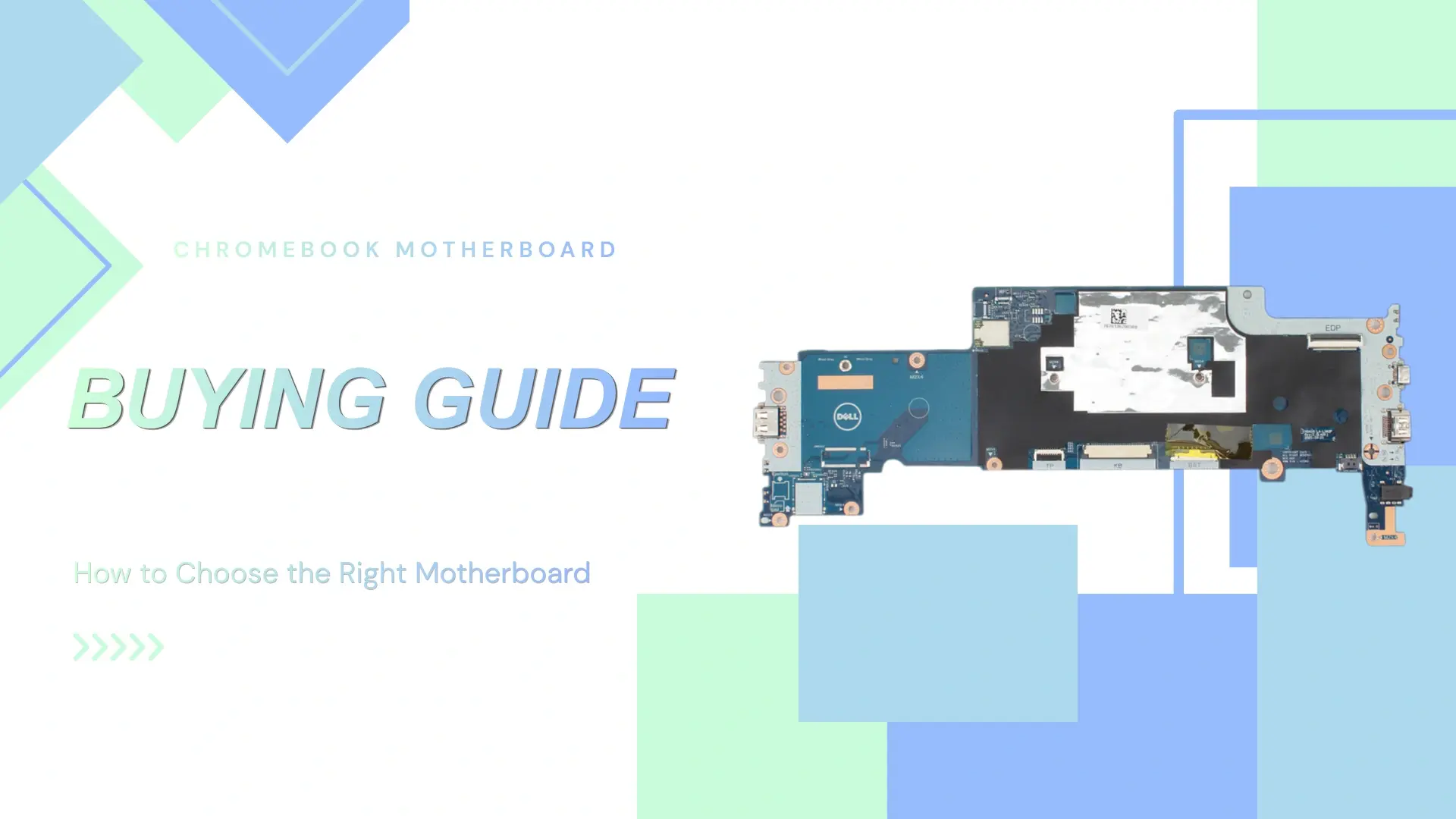
Choosing the correct Chromebook motherboard is one of the most important steps when repairing or upgrading a Chromebook. A motherboard controls the processor, memory, storage, wireless connectivity, and compatibility with the rest of the device. Buying the wrong board can lead to installation problems, missing features, or hardware incompatibility.
This guide explains the most important motherboard specifications and options so you can confidently select the correct board for your Chromebook.
Board Revisions
One important thing to check when buying a Chromebook motherboard is the board revision.
A board revision is a hardware version of the motherboard. You may see labels on the motherboard such as:
- Rev 1.0
- Rev 2.1
- REV A
- REV C
Manufacturers sometimes release updated revisions during production, even for the same Chromebook model. These revisions may include small design changes, updated connectors, or compatibility improvements.
For example, two motherboards may both fit the same Chromebook model, but one revision could support a different display cable or wireless module.
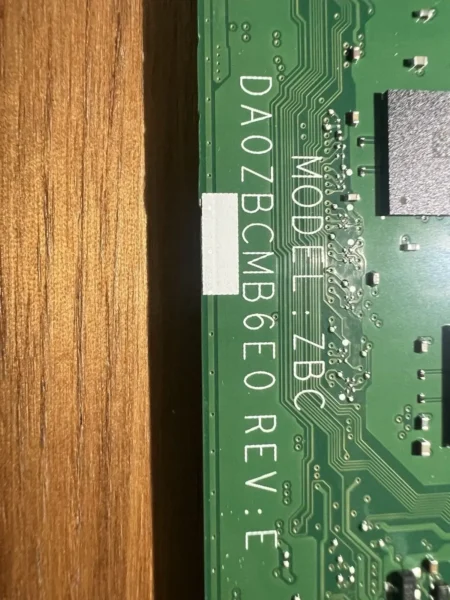
(Acer Chromebook Spin 513 (CP513-1H) REV: E)
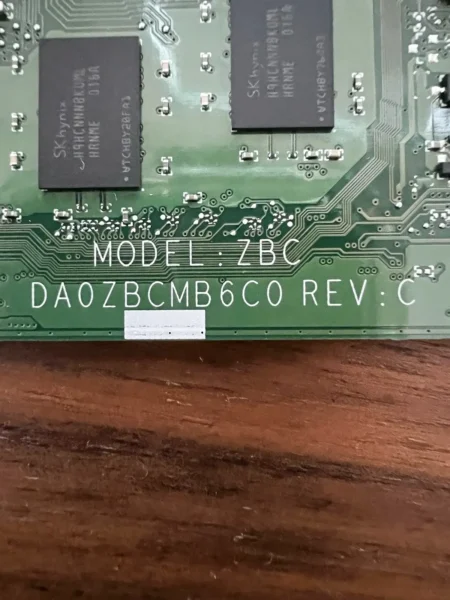
(Acer Chromebook Spin 513 (CP513-1H) REV: C)
Why does this matter?
If the revision does not match correctly, you could experience:
- Display problems
- Charging issues
- Non-working ports
- Wi-Fi or keyboard compatibility problems
When possible, it is always safest to match the same revision number as your original motherboard.
Storage Options
Chromebook storage is usually built directly into the motherboard, so the storage size you choose is permanent in most cases.
The most common storage options are:
- 32GB
- 64GB
32GB Storage
Good for:
- Basic browsing
- School use
- Google Docs and cloud storage
- Lightweight applications
This option works well for users who mainly store files online.
64GB Storage
Better for:
- Android apps
- Offline files
- More downloads
- Multitasking
Many customers prefer 64GB because ChromeOS and Android apps continue to use more storage over time.
If you regularly download files or install apps, choosing a motherboard with larger storage can improve the long-term user experience.
CPU and RAM
The CPU and RAM determine the performance of the Chromebook motherboard.
CPU (Processor)
Common Chromebook processors include:
- Intel Celeron
- Intel Pentium
- Intel Core series
Entry-level processors like Intel Celeron are suitable for:
- Web browsing
- Online classes
Higher-performance processors are better for:
- Heavy multitasking
- Video conferencing
- Android apps
- Business use
RAM (Memory)
The most common RAM configurations are:
- 4GB RAM
- 8GB RAM
4GB RAM
Suitable for:
- Basic everyday tasks
- Student use
- Light browsing
8GB RAM
Recommended for users who:
- Open many Chrome tabs
- Use Android applications
- Need smoother multitasking
Because Chromebook RAM is usually soldered onto the motherboard, it normally cannot be upgraded later. Choosing the right RAM size before purchase is important.
Short Version vs Long Version
When searching for a Chromebook motherboard, customers often see both short and long motherboard numbers.
A good example is the Dell Chromebook 3110 motherboard.
Short Version (06H2T)
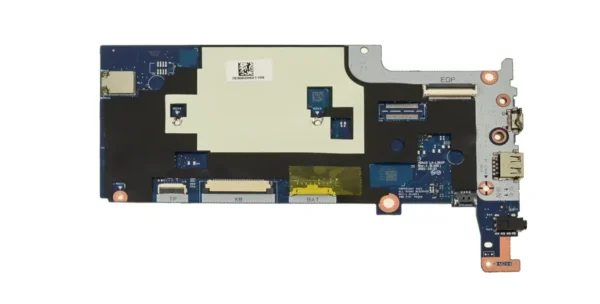
The short version motherboard is usually used in standard clamshell (non-touch) models. The board is smaller and uses longer internal cables to connect other components.
Long Version (0M82Y4)
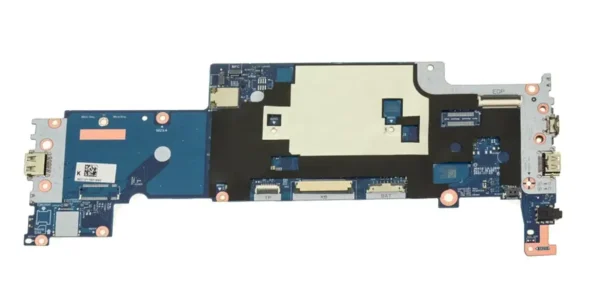
The long version motherboard is commonly found in 2-in-1 touchscreen or flip models. It extends farther across the chassis to support 360-degree hinges and touchscreen-related hardware.
Why Does This Matter?
Short and long boards are not interchangeable. Even if the Chromebook model name is the same, the motherboard may not fit correctly because:
- Screw holes may not align
- Port positions can differ
- Cable lengths and connector layouts may change
Before purchasing a Chromebook motherboard, always confirm the original board type and part number to ensure proper compatibility.
WFC Support
Some Chromebook motherboards include WFC support information.
WFC generally relates to wireless functionality and compatibility within the Chromebook system.
Why should customers care about this?
Proper wireless support helps ensure:
- Stable Wi-Fi connectivity
- Bluetooth functionality
- Better compatibility with ChromeOS
If a motherboard lacks the correct wireless support, users may experience connection problems or reduced wireless performance.
For most buyers, the best practice is simply to choose a motherboard with the same wireless configuration as the original board.
Serial Number Writing
Some Chromebook motherboards require serial number programming before installation.
This means the motherboard needs device information written into the firmware so the Chromebook can identify itself correctly.
There are usually two situations:
Seller Writes the Serial Number
The customer provides the original serial number, and the seller programs it before shipping.
This is the easiest option for most customers because installation is simpler.
Customer Writes the Serial Number
Some boards are shipped blank, meaning the customer or technician must program the serial number manually.
This option is more common for repair shops or experienced technicians.
Why is this important?
Without correct serial number information, the Chromebook may experience:
- Enrollment issues
- Asset management problems
- Recovery limitations
For most non-technical users, pre-programmed motherboards are the better choice.
Heatsink Options
A heatsink helps cool the processor and prevents overheating.
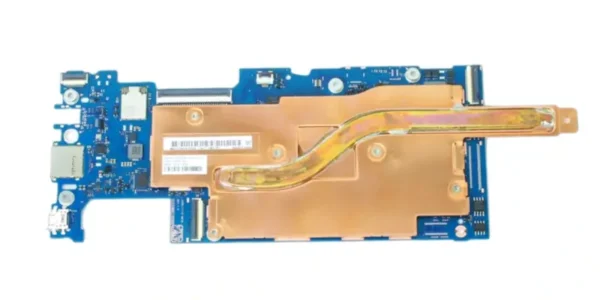
Some Chromebook motherboard listings include:
- Motherboard only
- Motherboard with heatsink
- Full cooling assembly
When Should You Choose a Heatsink?
A motherboard with heatsink is recommended when:
- Your original heatsink is damaged
- You want easier installation
- Your Chromebook uses a more powerful CPU
When Can You Reuse the Old Heatsink?
You may reuse the original heatsink if:
- It is in good condition
- The mounting points match
- Thermal pads are still usable or replaced
For many customers, purchasing the motherboard with the heatsink already installed can reduce installation risk and save time.
Final Thoughts
Buying the correct Chromebook motherboard is about more than just matching the Chromebook model name. Customers should also pay attention to:
- Board revisions
- Storage size
- CPU and RAM configuration
- Short and long part numbers
- WFC support
- Serial number programming
- Heatsink compatibility
Understanding these specifications helps ensure you receive a motherboard that works properly with your Chromebook and meets your performance needs. A carefully selected Chromebook motherboard can extend the life of the device and provide a much smoother repair experience.