Laptop LCDs Buying Guide: How to Choose the Right Screen
Buying the wrong laptop lcds is one of the most common—and costly—mistakes in repair and refurbishing.
If you don’t have the exact part number and LCD model number, choosing a compatible screen can feel like guesswork. But in reality, you can still identify the correct panel by checking a few critical parameters.
This guide shows you exactly how to choose a laptop lcds before buying, including connector types, PCB structure, panel quality, and more—so you can avoid mismatches and order with confidence.
Quick Answer: How to Choose the Right Laptop LCDs
If you’re in a hurry, here’s the simplified logic:
Physical Fit: Same Size + Bracket Type + PCB Structure (Folded/Straight)
Signal Fit: Same Connector (30/40-Pin) + Position + Resolution
Quality Choice: IPS + 300 Nits (for premium experience)
1. Screen Size
What is laptop lcds size?
It’s the diagonal measurement of the display (e.g., 14.0″, 15.6″, 17.3″).
Why it matters
This determines whether the panel physically fits your laptop.
How to identify
- Search your laptop model specs
- Or measure diagonally (excluding bezel)
2. Connector Type
What is a laptop lcds connector?
It’s the interface that transmits video signals from the motherboard to the LCD panel.
Key Differences
| Feature | 30-Pin Panel | 40-Pin Panel |
|---|---|---|
| Typical Use | HD / basic FHD | FHD IPS / QHD / touch |
| Bandwidth | Lower | Higher |
| Upgrade Potential | Limited | More flexible |
| Compatibility | Not interchangeable | Not interchangeable |
Why it matters
Using the wrong connector:
- Screen won’t light up
- Or may damage hardware
How to identify
- Check connector width on your screen
- Note position (bottom-left or bottom-right)
- Search: “[laptop model] screen connector type”
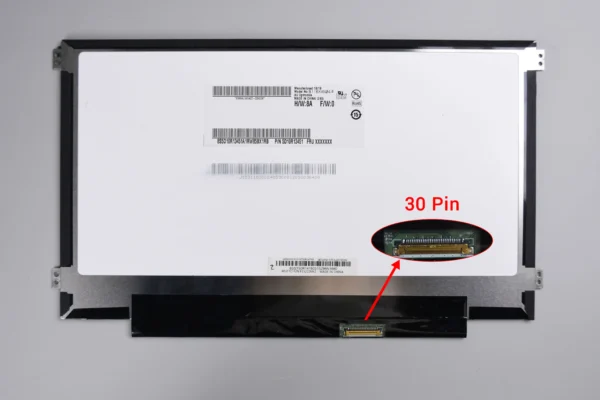
(30 Pin)
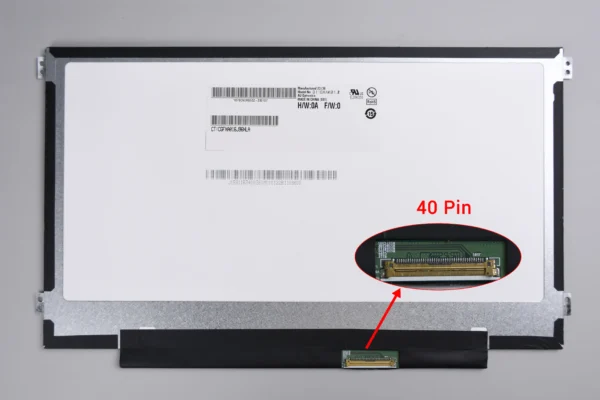
(40 Pin)
3. Bracket Type (Mounting Compatibility)
What it means
Brackets determine how the screen is fixed inside the laptop top covers.
Types
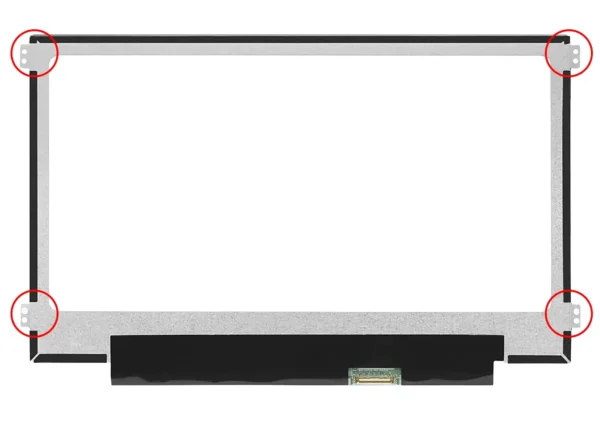
- Side mount (most common)
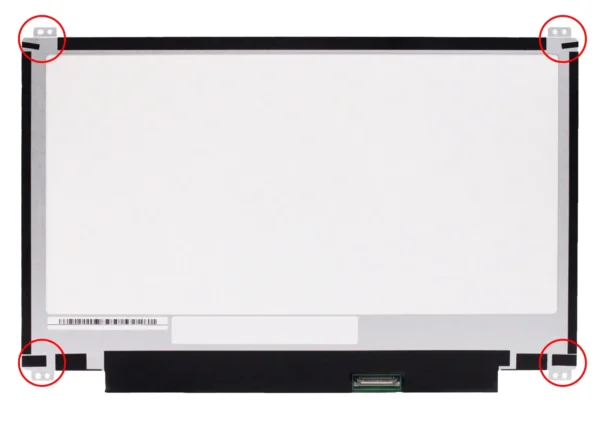
- Top & bottom mount
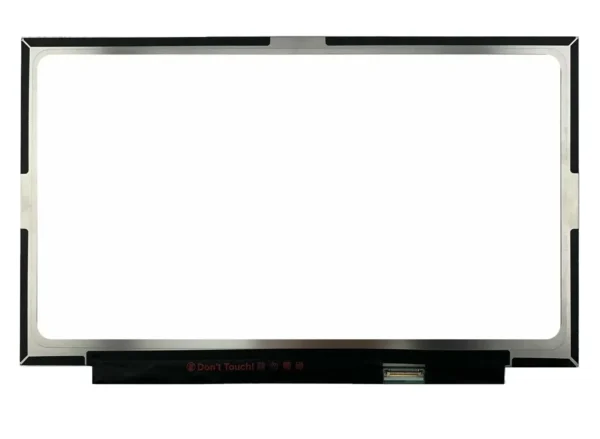
- Bracketless (slim panels)
Why it matters
Wrong bracket means installation failure or misalignment
How to check
- Look at screw positions on your current panel
- Compare with product images before buying
4. Board Structure & PCB Type
This is where most buyers—and even some sellers—get it wrong.
What it means
At the bottom of the LCD panel is a source PCB, connected to the glass via COF (Chip-on-Film).
Its structure and length directly affect compatibility, especially in slim laptops.
PCB Structure Types
Straight / Non-Folded
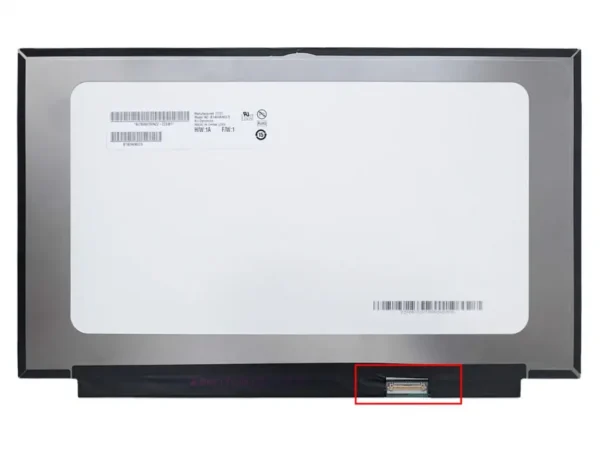
- PCB extends outward in a straight line
- Found in older or thicker panels
Folded / COF-Folded
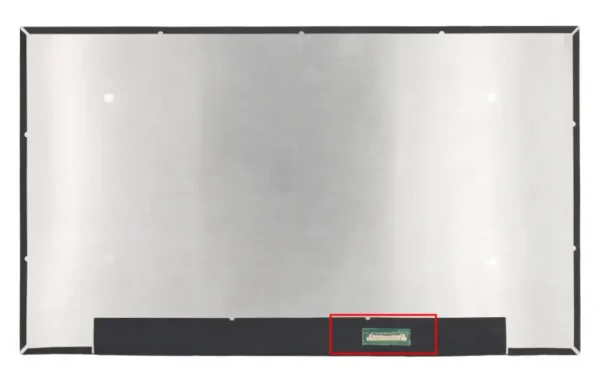
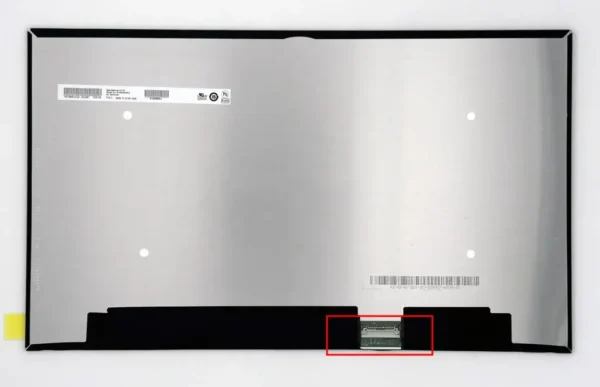
- PCB is folded behind the panel
- Used in modern slim LCDs
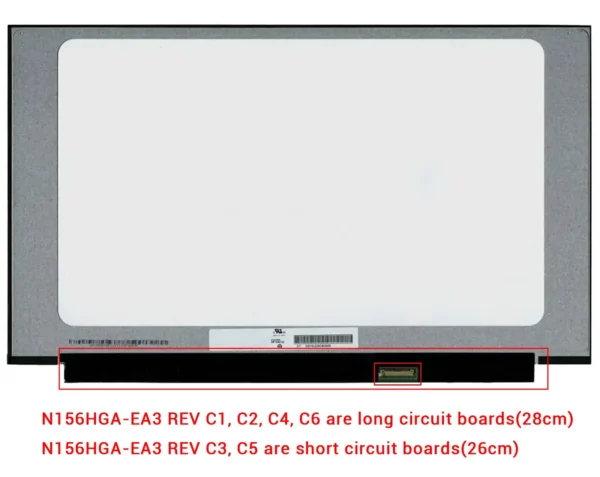
PCB Length: Long vs Short Board
Even within the same model, PCB length differs.
Real Example
- N156HGA-EA3 REV C1 / C2 / C4 / C6 → Long PCB
- N156HGA-EA3 REV C3 / C5 → Short PCB
Why it matters
Mismatch can cause:
- Cable not reaching connector
- Misaligned connector position
- Improper fit inside housing
- Installation failure
Even if everything else matches, PCB differences can break compatibility
How to identify
- Compare backside photos
- Check connector distance from edge
Pro tip: Always match model + REV version when possible
5. Panel Type (IPS vs TN Laptop Panel)
What is panel type?
It defines how your screen displays color, brightness, and viewing angles.
IPS vs TN Comparison
| Feature | IPS Panel | TN Panel |
|---|---|---|
| Color Accuracy | High | Low |
| Viewing Angles | Wide | Narrow |
| User Experience | Premium | Basic |
| Cost | Higher | Lower |
Which should you choose?
- IPS → Best for 90% of users
- TN → Budget or legacy replacement
Upgrade tip: Switching TN to IPS is the biggest visual improvement you can make.
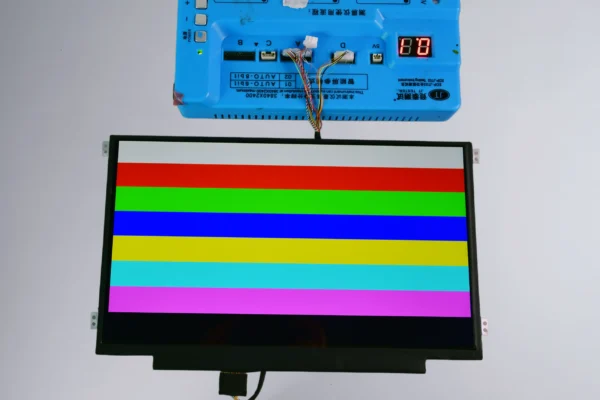
(IPS Panel)
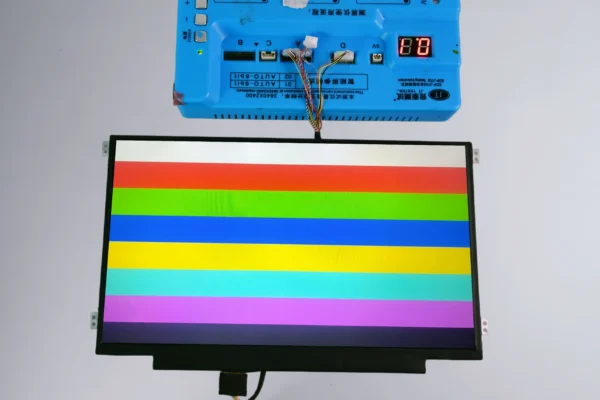
(TN Panel)
6. Finish (Matte vs Glossy)
Matte (Anti-Glare)
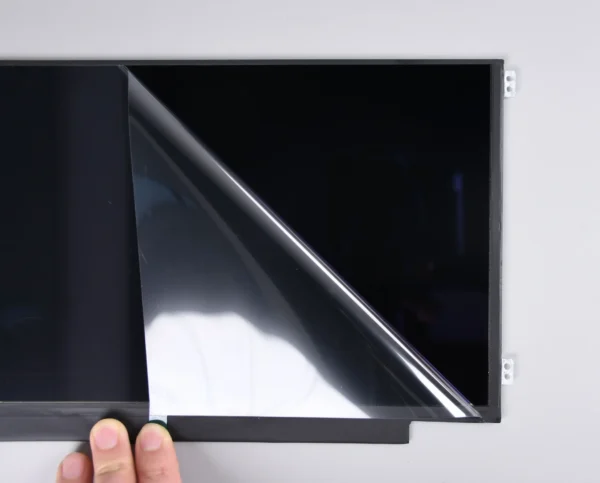
- Reduces reflections
- Better for work and bright environments
Glossy
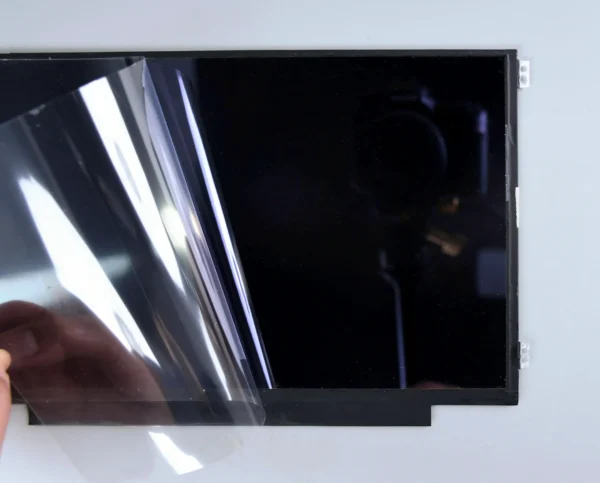
- More vibrant colors
- Reflective under light
Recommendation
| Scenario | Best Choice |
|---|---|
| Office / productivity | Matte |
| Media / movies | Glossy |
| Bright rooms | Matte |
7. Resolution & Brightness (Final Decision Factors)
Resolution (Clarity)
Common options
- HD (1366×768) → basic
- FHD (1920×1080) → best balance
- QHD (2560×1440) → premium
How to choose
- Daily use → FHD recommended
- Budget repair → HD acceptable
- Premium upgrade → QHD (if supported)
Important
Higher resolution requires:
- Compatible GPU
- Correct cable
- Usually 40-pin connector
Brightness (Nits)
Typical levels
- 200–250 nits → basic indoor
- 300 nits → recommended
- 400+ nits → bright environments
Recommendation
Choose 300 nits or higher for best usability
Common Buying Mistakes (Avoid These)
- Buying same size but wrong connector
- Ignoring connector position
- Assuming all FHD screens are interchangeable
- Overlooking PCB structure (long vs short)
- Trusting “compatible” without verification
Practical Buying Strategy (No Model Number)
If you don’t have the panel model:
- Identify screen size
- Check connector type + position
- Confirm bracket or slim design
- Compare PCB structure (folded/straight)
- Verify panel type (IPS preferred)
- Choose resolution & brightness
Still unsure? Send your laptop model + screen photos to a reliable supplier.
Quick Buying Checklist
Before placing your order:
- Screen size (exact)
- Connector type (30-pin / 40-pin)
- Connector position
- Bracket type
- PCB structure (folded/straight, long/short)
- Panel type (IPS recommended)
- Finish (matte/glossy)
- Resolution compatibility
- Brightness level
FAQ
Q1: Are all laptop screens with the same size interchangeable?
No. Size alone is not enough—connector, interface, and mounting must match.
Q2: Can I upgrade from 30-pin to 40-pin?
Not directly. This usually requires a different cable and motherboard support.
Q3: Is IPS always better than TN?
For most users, yes—better colors and viewing angles.
Q4: Does higher resolution always work?
Only if your laptop hardware supports it.
Q5: What’s the safest way to choose the right screen?
Match your exact original panel model number, then verify specs.
Need Help Choosing the Right Screen?
If you’re unsure, the safest approach is to:
- Provide your laptop model
- Share a photo of your current screen (front + back)
This allows accurate matching of:
- Connector type
- PCB structure
- Compatibility