Top Signs of a Swollen Chromebook Battery
A swollen Chromebook battery can cause far more damage than most users realize. If your Chromebook keyboard is lifting, the trackpad suddenly feels difficult to click, or the bottom cover no longer sits flat on a desk, the battery inside your device may already be expanding. In many school Chromebooks, battery swelling is one of the most common hardware problems after several years of daily charging and heavy classroom use.
Ignoring a swollen battery can lead to cracked screens, damaged hinges, warped palmrests, and even motherboard failure. Learning the warning signs early can help you replace the battery before the repair becomes much more expensive.
What Causes a Swollen Chromebook Battery?
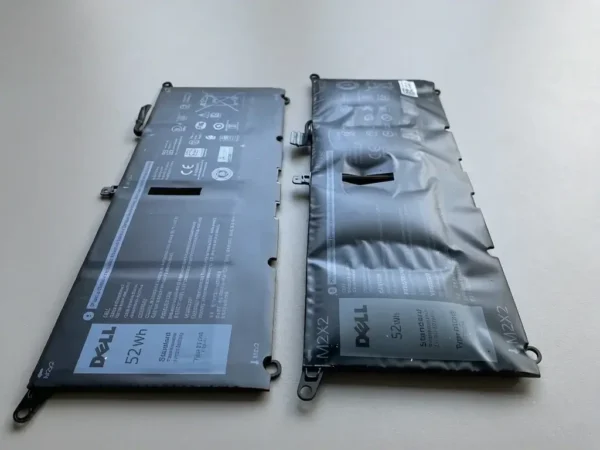
A swollen Chromebook battery is usually caused by lithium-ion battery degradation. Over time, every Chromebook battery slowly wears down through repeated charging cycles. Heat, aging, and constant charging all accelerate this process.
School Chromebooks are especially vulnerable because they are often:
- Plugged in all day
- Stored in charging carts
- Used for years without battery replacement
- Exposed to heavy daily use by students
Technicians frequently see battery swelling in education models like the Dell Chromebook 3100, Dell 3110, Lenovo 100e, HP Chromebook 11 G8, and Acer C733 because these devices are designed for long deployment cycles.
Physical damage can also contribute to battery expansion. If a Chromebook has been dropped or bent, pressure inside the battery cells may eventually lead to swelling. Poor-quality USB-C chargers or incompatible charging adapters may also shorten battery lifespan.
Common Signs of a Swollen Chromebook Battery
1. The Bottom Cover Looks Bulged or Uneven
One of the earliest signs of a swollen Chromebook battery is a Chromebook that no longer sits flat on a table. The bottom panel may begin separating from the chassis, creating visible gaps around the edges.
In many repair cases, users first notice the problem when the Chromebook starts wobbling slightly during typing. This happens because the expanding battery pushes directly against the lower cover from inside the device.
Many people assume the plastic case is simply warped from age, but this is often an early warning sign of dangerous battery expansion.
2. The Trackpad Becomes Hard to Click
A swollen Chromebook battery often pushes upward into the palmrest assembly, directly affecting the trackpad.
On many school Chromebooks, the trackpad may:
- Feel stuck
- Lose its normal clicking sound
- Stop responding consistently
- Sit higher than normal
Technicians commonly discover swollen batteries after users report “trackpad issues” that are actually caused by internal battery pressure.
This symptom is particularly common in compact 11.6-inch Chromebook models where internal space is limited.
3. The Keyboard Starts Lifting Upward
As the battery expands, it may begin pushing against the keyboard from underneath.
Common symptoms include:
- Raised keys in the center area
- Uneven typing surface
- Palmrest separation
- Flexing around the keyboard deck
In severe cases, the keyboard frame may permanently warp due to prolonged pressure from the expanding battery.
4. The Screen Separates Near the Hinges
A swollen Chromebook battery can also place pressure on the display assembly. Over time, the expanding battery may push against:
- Hinges
- LCD back cover
- Screen bezel
- Display cables
You may notice:
- Gaps forming near the hinges
- Uneven screen alignment
- The display not closing completely
Repair technicians often see cracked hinges and damaged LCD covers caused by batteries that were left swollen for too long.
5. Battery Life Suddenly Gets Worse
Battery swelling is usually accompanied by internal battery failure.
A damaged battery may:
- Drain unusually fast
- Shut down randomly
- Refuse to charge fully
- Show incorrect battery percentages
While normal battery aging is expected over time, sudden battery instability combined with physical symptoms often indicates a swollen Chromebook battery.
6. The Chromebook Gets Hot During Normal Use
Overheating is another major warning sign.
If your Chromebook becomes unusually warm during light tasks like web browsing or video streaming, the battery may already be unstable internally.
In many cases, users notice:
- Excess heat near the palmrest
- Overheating while charging
- Warm bottom panels even during idle use
Heat both causes and worsens battery swelling, creating a dangerous cycle over time.
7. Strange Smells or Popping Sounds
In more serious cases, a swollen Chromebook battery may produce:
- Chemical smells
- Sweet or burning odors
- Crackling or popping noises
These symptoms should never be ignored.
If your Chromebook produces unusual smells or sounds:
- Shut down the device immediately
- Disconnect the charger
- Stop using the Chromebook until the battery is replaced
Damaged lithium-ion batteries can become dangerous if punctured or overheated.
Why a Swollen Chromebook Battery Is Dangerous
A swollen Chromebook battery is more than just a battery problem. As the battery expands, it creates internal pressure that can damage multiple Chromebook components.
Common secondary damage includes:
- Broken LCD screens
- Cracked hinges
- Bent palmrests
- Damaged trackpads
- Motherboard stress
- Cable damage
In school environments, delayed battery replacement often turns a simple battery repair into a much more expensive full-device repair.
Replacing the battery early is almost always cheaper than replacing the screen, hinge assembly, or motherboard later.
What to Do If You Have a Swollen Chromebook Battery
If you suspect your Chromebook battery is swollen, follow these steps immediately:
Turn Off the Chromebook
Continuing to use the device may increase internal pressure and heat.
Stop Charging the Device
Disconnect the USB-C charger right away.
Do Not Press on the Battery Area
Never try to flatten or compress a swollen battery.
Avoid Puncturing the Battery
Lithium-ion batteries can become hazardous if damaged.
Replace the Battery as Soon as Possible
Installing a compatible Chromebook replacement battery is the safest long-term solution.
How to Find the Correct Chromebook Replacement Battery
Before purchasing a replacement, make sure to verify:
- Chromebook model number
- Battery part number
- Voltage compatibility
- Connector type
Many Chromebook models use visually similar batteries that are not actually compatible.
For example, batteries used in the Dell Chromebook 3100 is differ from those used in the Dell 3110 2-in-1 model, even though the devices look similar externally.
Using the wrong chromebook replacement battery can lead to charging problems or installation issues.
How to Prevent Chromebook Battery Swelling
While all batteries eventually wear out, proper care can significantly reduce the risk of battery swelling.
Best practices include:
- Avoid keeping the Chromebook plugged in 24/7
- Keep the device away from excessive heat
- Use high-quality USB-C chargers
- Replace aging batteries before failure
- Avoid leaving Chromebooks inside hot cars
Schools and businesses managing large Chromebook fleets should also consider scheduled battery inspections after several years of use.
Final Thoughts on a Swollen Chromebook Battery
A swollen Chromebook battery should never be ignored, even if the Chromebook still appears functional. Early warning signs like lifted trackpads, bulging bottom covers, overheating, or screen separation often indicate dangerous internal battery pressure.
Replacing the battery early can help prevent damage to expensive Chromebook parts and extend the life of the device. Whether you use a Chromebook at home, in a business environment, or in a school deployment, recognizing battery swelling symptoms early can save both repair costs and downtime.