The Ultimate Guide to Chromebook Stylus Compatibility: USI, EMR, or Capacitive?
If you are a school IT administrator procuring hardware or a retail customer upgrading your device, navigating the world of ChromeOS touchscreen devices can be incredibly confusing. A common misconception trips up buyers every single day: “Since my Chromebook has a touch screen, I can just buy any stylus on the market and it will work perfectly.”
People naturally assume that touch-capacitive glass is universally compatible with all digital pens. Unfortunately, this costly assumption leads to massive frustration and endless product returns.
Unlocking precise drawing, handwriting, and pressure sensitivity depends entirely on the hidden hardware layer—the specific digitizer—embedded inside the LCD assembly. Forcing a high-end active pen onto a standard touch screen results in zero response, while buying an incompatible version leaves users with dropped connections and lag. To eliminate buying confusion and ensure absolute Chromebook stylus compatibility, let’s break down the technical boundaries between the three dominant pen technologies on the market.
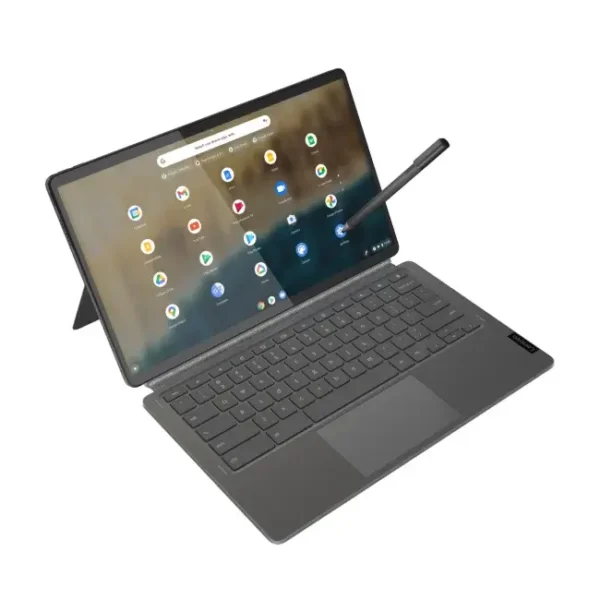
1. Capacitive Stylus: The Universal, Basic Solution
A passive capacitive stylus is essentially a high-tech substitute for your finger. It features a rubber or plastic mesh tip that mimics the natural bio-electricity of human skin.
How it Works: It does not communicate via radio waves or internal chips; it simply disrupts the electrostatic field of the touch panel.
The Problem: Because the screen treats the pen exactly like a finger, these pens do not support palm rejection or pressure sensitivity. You cannot rest your hand on the glass while writing, or the cursor will jump wildly.
Device Match: These pens have universal Chromebook stylus compatibility—they work on every single touchscreen ever made, including older budget models.
Example Models: Asus Chromebook Flip C214 (standard non-stylus touch version) or any basic touchscreen Chromebook that lacks advanced active pen hardware.
2. USI (Universal Stylus Initiative): The Modern Consumer Standard
The Universal Stylus Initiative (USI) is an open, multi-brand industry standard backed heavily by Google. Unlike proprietary protocols, a USI pen features an active transmitter chip that talks directly to a dedicated USI digitizer layer under the glass, enabling cross-brand hardware sharing.
The Experience: USI delivers premium sub-millimeter tracking, rich pressure sensitivity (up to 4,096 levels), and flawless palm rejection.
The Critical Split: USI 1.0 vs. USI 2.0: This is where Chromebook stylus compatibility gets tricky. USI 2.0 introduced in-cell display support and improved color signals, but USI 1.0 pens and USI 2.0 hardware are completely incompatible. You must match the specific version generation of your machine.
USI 1.0 Devices:
Dell Chromebook 3110 2-in-1: A highly popular rugged classroom flip laptop featuring native USI 1.0 support.
Lenovo 500e Chromebook (Gen 3): Another classic education model featuring native USI 1.0 support.
HP Chromebook x360 14c: A premium consumer convertible built for USI 1.0 active pens.
USI 2.0 Devices:
Lenovo IdeaPad Duet 3 Chromebook (11-inch, Gen 7): Upgraded to the modern USI 2.0 standard; older USI 1.0 pens will not respond on this screen.
Acer Chromebook Spin 714: High-performance business convertibles utilizing advanced USI 2.0 touch layers.
3. Wacom EMR Stylus: The Battery-Free Education Powerhouse
EMR stands for Electromagnetic Resonance. Developed by Wacom, this technology places an alternating electromagnetic grid behind the LCD panel that wirelessly projects energy up into the pen tip.
The Experience: Because the screen powers the pen wirelessly, EMR pens require absolutely no batteries and no charging. They are incredibly lightweight, highly durable, and offer arguably the most natural “pen-to-paper” tracking precision on earth.
The Catch: An EMR pen will only function on a screen that has a physical Wacom EMR grid manufactured inside it.
Device Match: EMR dominates K-12 school environments because it reduces battery maintenance and down-time for young students.
Example Models:
Acer Chromebook Spin 511 R752TN: A legendary K-12 classroom workhorse that ships out-of-the-box with a built-in, garaged Wacom EMR stylus.
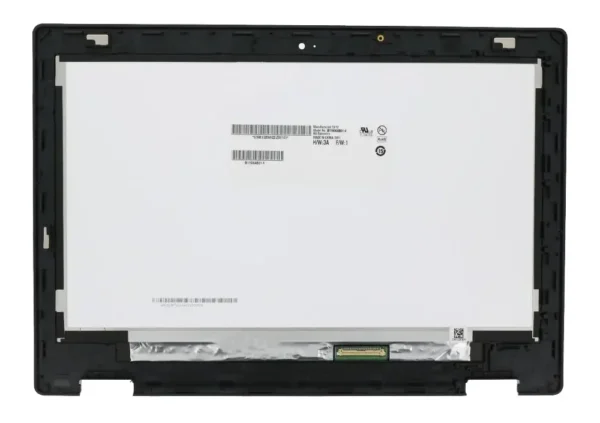
(Acer Chromebook Spin 511 R752TN touch screen non EMR)
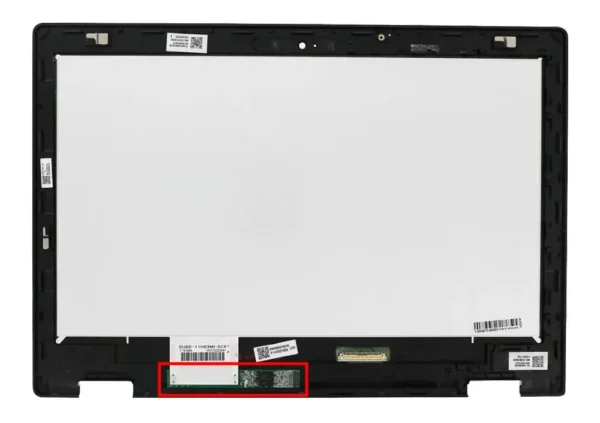
(Acer Chromebook Spin 511 R752TN touch screen with EMR)
Technical Summary Matrix
To easily cross-reference hardware requirements, keep this Chromebook stylus compatibility cheat sheet handy:
| Feature / Spec | Passive Capacitive | Active USI (1.0 / 2.0) | Wacom EMR |
| Digitizer Hardware Required | Standard Touch Layer | Specialized USI Chipset | Wacom Electromagnetic Grid |
| Palm Rejection | No | Yes | Yes |
| Pressure Sensitivity | No | Yes (Up to 4096 levels) | Yes (Extremely Precise) |
| Power Source | None | Battery Needed (AAAA or Type-C) | Battery-Free |
| Primary Audience | Casual Users / Budgets | Professionals & Creators | K-12 Schools & Students |
How to Verify Your Device’s True Stylus Support
Before clicking “Add to Cart” on a replacement screen component or a fleet of stylus pens, run this quick check to guarantee true Chromebook stylus compatibility:
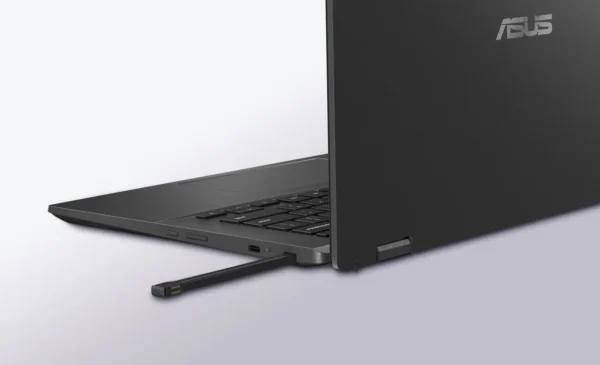
1. Look for physical telltales: Does your laptop frame have a built-in “garage” slot housing a thin stylus? If it does and the pen doesn’t require a battery, you have an EMR machine.
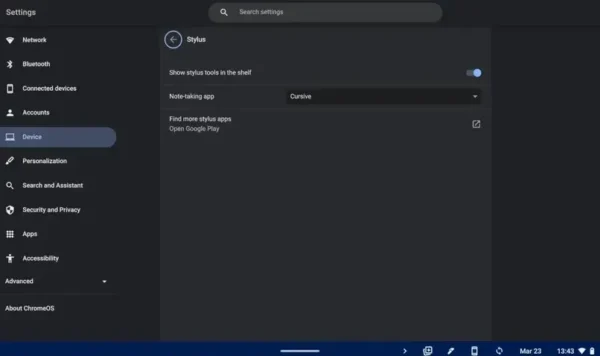
2. Verify the ChromeOS Settings: Power on your device. Navigate to Settings > Device. If your hardware natively supports active pens, a dedicated “Stylus” submenu will appear in the UI. If it is missing, you are restricted to basic finger-touch or capacitive inputs.
3. Cross-Check Manufacturer SKU Numbers: Always audit official technical spec sheets. Ensure words like “USI Enabled” or “Wacom EMR Active Pen Support” are printed explicitly, rather than just a generic “Touchscreen” label.
Understanding the boundaries of Chromebook stylus compatibility keeps your workflows smooth, protects your wallet from incorrect purchases, and ensures your hardware deployment delivers the exact digital workspace your users expect.